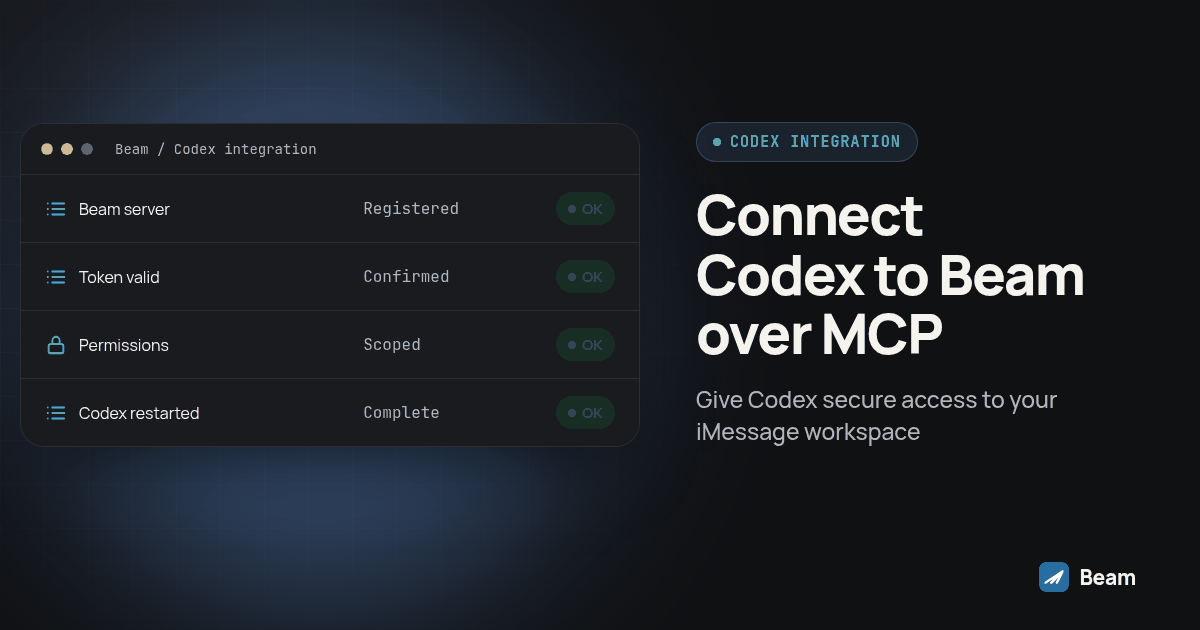
Codex can already read your codebase and run your tests against it. Point it at Beam and it can also read an iMessage thread, draft a reply for your business assistant, and tell you which conversations are waiting on a human, without you opening the Beam inbox at all.
Everything below was verified on 2026-10-12 against Beam’s developer access docs and the Codex MCP docs.
Answer first: Create a Beam connection token while signed in directly as the workspace owner, not in Client view, under Settings, Developer access, MCP & API. Put that token in your shell as
BEAM_TOKEN, then runcodex mcp add beam --url https://beam.aisync.link/mcp --bearer-token-env-var BEAM_TOKEN. Restart Codex, confirm withcodex mcp list, then ask it to callworkspace_readand name the workspace before you trust anything else it tells you.
What does Codex actually get from Beam?
Beam is the layer that gives a business its own iMessage lines, with RCS for Android phones that support it and SMS as the fallback everywhere else. Once Codex is connected, it is not placing texts out of nowhere, it is reading and writing against the same workspace your team already uses: the conversation history, the assistant’s current configuration, the numbers assigned to you, and your calendar’s open slots.
That is a different job than most coding work. A normal Codex session edits files you already own. A Beam session reaches outside your repo into a conversation with a real person on the other end, so the token you hand it only goes as far as the permissions you picked, and Codex’s own approval setting sits on top of that as a second check.
That same workspace is also reachable without MCP at all, through Beam’s iMessage API, if you would rather wire a server to it directly than go through an agent. And if the agent you want to connect is Claude instead of Codex, Claude by text, no laptop needed covers that path.
How do I get a connection token in Beam?
Codex needs a token before any of this works, and that token is created inside Beam, not inside Codex.
- Sign in directly as the workspace owner. Client view does not show the developer settings.
- Open Settings → Developer access, MCP & API.
- Name the connection something you will recognize later, like “Codex”.
- Choose its permissions. Read and train are selected by default. Publishing, automation, sending and booking each need to be turned on explicitly, and you should only turn on what this particular use actually needs.
- Click Create connection token and copy it immediately. It is shown once, it expires after 90 days, and it cannot be displayed again after you leave that screen.
If you are running this for an agency client rather than your own business, sign in to the agency workspace instead and pick the specific client under Workspace this connection can access before creating the token. One token covers one workspace. It cannot be pointed at a different client later.
Beam’s full developer docs list every tool a token can reach and exactly which permission turns it on, which is worth reading once before you decide what to turn on.
How do I add Beam to Codex’s config?
With the token copied, put it somewhere Codex’s process will actually see it, for example exporting it in the terminal session you run Codex from:
export BEAM_TOKEN="paste_your_token_here"Then register the server:
codex mcp add beam --url https://beam.aisync.link/mcp --bearer-token-env-var BEAM_TOKENThat command writes an entry into ~/.codex/config.toml (or a trusted project’s .codex/config.toml if you are running it from inside one). It looks like this:
[mcp_servers.beam]
url = "https://beam.aisync.link/mcp"
bearer_token_env_var = "BEAM_TOKEN"
Notice what is and is not in that file. Both the URL and the variable name BEAM_TOKEN show up here. What’s missing is the token itself, because Codex only stores the name of the environment variable and reads the real value fresh from the process environment each time. That means moving this config to another machine, or checking it into a shared project, does nothing by itself. Wherever Codex actually runs is where BEAM_TOKEN still needs to be set.
Restart Codex after adding the server, since it only reads config.toml on startup. Because this file is shared by the Codex CLI, the ChatGPT desktop app and the IDE extension, the same beam entry shows up in all three once you restart whichever one you use.
How do I choose what the token can touch?
This is Beam’s version of an approval screen, and it happens at token creation rather than in a browser popup. Each permission turns on a specific set of tools:
| Permission | Tools it turns on |
|---|---|
| read | workspace_read, assistant_read, contacts_list, conversation_read, numbers_list, drafts_list, calendars_list, calendar_slots |
| train | draft_create, assistant_preview |
| publish | draft_publish |
| automation | conversation_pause |
| send | message_send |
| book | appointment_book |
A token created with only read and train, which is the default, physically cannot call message_send or draft_publish. There is no setting on Codex’s side that would let it through, because the tool is not available to that token at all.
Codex adds a second layer on top of whatever the token can reach. Its default_tools_approval_mode setting controls how often it stops to ask you:
autoruns tools without asking.promptasks before every tool call.writesis the default: Codex runs anything marked read only on its own and asks before anything that writes or changes state.approveruns everything without asking, which is worth avoiding here.
You can also narrow things further with enabled_tools or disabled_tools in the same config block, for example disabling message_send entirely even if the token technically has send permission, so a session that should only be reading conversations cannot send one by mistake.
How do I verify the connection works?
Do not trust the first answer that sounds right. Check what Codex actually sees registered:
codex mcp listInside a running session, /mcp shows the same thing along with connection status, which is faster if you are already in the TUI.
A server showing up in that list only means the entry exists, not that the token behind it is valid. Confirm that separately by asking a question Beam can only answer from your account:
Call workspace_read and tell me the workspace name and ID. Stop if it is not the workspace I mean.
If the name and ID match the workspace you intended, the token is live and scoped correctly. If Codex comes back with an authorization error, check that BEAM_TOKEN is actually set in the environment of the process you restarted, not just in a different terminal tab. If the workspace name is wrong, you created the token in the wrong workspace or the wrong client, and the fix is going back to Beam and creating it again in the right place, not debugging Codex.
What prompts actually put this to work?
These map directly to tools a read, train and (if you added it) send token actually has. Say the task in plain language and let Codex pick the calls.
- “Call workspace_read and confirm the workspace name before doing anything else.”
- “Read the current assistant configuration and tell me, in plain language, what it says about tone and appointment booking.”
- “Pull the last conversation with [contact name] and tell me whether we owe them a reply or they owe us one.”
- “Propose a clearer version of the appointment confirmation response. Save it as a draft and preview it against the last five conversations. Do not publish it.”
- “List numbers in this workspace and flag any that have no inbound receptionist configured.”
That draft and preview step is worth using even when you are confident in the change. assistant_preview runs the new configuration against real conversation history without sending a single message or booking anything, so you see how it behaves before it goes live. Publishing is a separate, explicit step that needs its own permission, and Beam keeps the previous configuration as a rollback draft in case the new one needs to be undone.
How do I keep the token safe once it’s live?
Read this part even if you skipped the rest. A connection token is not a read only key by default just because you set it up that way once. Anyone who has it can do whatever its permissions allow, from wherever they run it.
A few habits that matter from day one:
- Treat the token like a password. Store it in the environment, never in a chat message, a screenshot, a public repository or a URL. If it leaks, revoke it in Settings and create a new one.
- Give automation its own token, scoped tight. A token made just for Codex, with only the permissions this specific workflow needs, means you can see what it did and cut it off without touching anyone else’s access.
- Pay attention to the rate limit. Beam’s API allows 60 requests per minute per token. A loop that retries aggressively on failure will hit that limit before it fixes anything.
- Do not retry blindly on an uncertain result. Every write or preview call takes a unique request_key. Reusing the same key for the same request returns the stored result instead of repeating the action, which protects against sending the same message or booking twice, but an outcome-unknown response means you should check Beam’s own activity log before trying again with a new key.
- Revoke from Beam, not from Codex. Removing the mcp_servers entry from config.toml stops Codex from calling the server. It does not touch the token itself. Revoke it in Settings if you actually want access gone.
One more thing worth knowing: an accepted text is not proof it reached a phone. If Codex tells you a message sent, that reflects Beam accepting the request, and delivery status is a separate thing to check inside Beam when it matters.
If the agent you are connecting also needs to place or receive calls for the same business, that is a separate system: RizzDial’s guide to giving your AI agent a phone covers the voice side of the same idea.
Should I use Codex over MCP or the Beam REST API?
Both reach the same workspace. What differs is who decides which call to make.
| Codex over MCP | Beam REST API | |
|---|---|---|
| Suited for | Exploring a conversation or reviewing a draft with a person watching | A scheduled job or your own app, running unattended |
| Auth | Bearer token, name stored in config.toml, value read from the environment | Same Bearer token, sent directly with each request to GET or POST /v2/tools |
| Who picks the tool | Codex, based on what you asked in plain language | You, writing the exact call each time |
| Where it runs | Your terminal, the ChatGPT desktop app, or an IDE | Your own server or script |
| Failure mode | A tool call Codex is not allowed to make, or a question it answers from the wrong workspace | An HTTP status code you can check in code |
A practical pattern is to use Codex over MCP while you are still figuring out which calls you actually need, then have it write the exact REST calls against /v2/tools once the workflow is settled and should run the same way every time without anyone watching.
What do people ask about connecting Codex to Beam?
What exactly can Codex do once it is connected to Beam?
It depends on the permissions you picked when you created the token. Read and train are the default, which covers workspace_read, assistant_read, contacts_list, conversation_read, numbers_list, drafts_list, calendars_list, calendar_slots, draft_create and assistant_preview. Sending a message, publishing a draft, pausing automation or booking an appointment each need their own permission added at token creation, listed on Beam’s developer access page.
Does Codex store my Beam token?
No. Beam’s documented codex mcp add command stores only the environment variable name, BEAM_TOKEN, inside config.toml. Its token value has to live in the shell environment of the actual Codex process, and Codex reads it from there each time it starts the server.
What stops Codex from sending a text or publishing without me noticing?
Two separate guards. A read and train token cannot call message_send or draft_publish at all, since those tools are not on it. On Codex’s own side, default_tools_approval_mode defaults to writes, so Codex pauses and asks before any tool that is not marked read only, which covers message_send and draft_publish even if the token does have those permissions.
How do I revoke a connection if a laptop gets lost?
Open Settings, then Developer access, MCP & API in Beam and revoke the connection there. Access stops on Beam’s side right away. It does not matter whether Codex still has BEAM_TOKEN sitting in an environment file somewhere.
What happens when the token expires?
It expires 90 days after creation and cannot be displayed again once you leave that screen. Codex’s calls will start failing with an authorization error, and the fix is creating a new token in Beam and updating BEAM_TOKEN in the environment Codex reads from.
Create the token with only the permissions this job needs, put it in Codex’s config as a variable name rather than a secret, and check workspace_read before you trust anything it reports back.