A lead who has to leave a text thread, open a calendar link, pick a time zone and come back to confirm can abandon the booking before it is complete. The fix is not a smarter link. It is removing the link entirely and letting the booking happen in the same bubble as the conversation.
This setup is for agencies managing client calendars inside GoHighLevel. This walkthrough covers the mechanics: how the assistant reads availability, what GoHighLevel can and cannot trigger for reminders, where RCS and SMS fallback change the experience, and the reschedule and no-show rules that still need a person watching them. Nothing here is a claim about results your account will see; it is a procedure to run and verify in your own workspace.
What does “booking inside the thread” actually mean?
It means the lead never leaves iMessage to finish the booking. Compare that to the common pattern: a text with a calendar link, the lead taps it, a browser opens, picks a time, then texts back “ok I booked it.”
Beam’s assistant documentation describes booking without that browser handoff. Before every reply, it reads the connected calendar’s live availability for the next six days and proposes two real windows in plain words, for example “Tuesday at 2pm or Wednesday at 10am Central, which works?” It never sends a calendar link. The lead answers in the same bubble, and the appointment gets written to the calendar from that reply.
That distinction matters for the no-show problem too. A separate Cochrane review of mobile messaging reminders found text reminders produce attendance effects similar to phone reminders, with low to moderate quality evidence across comparisons, with an improvement over no reminder at all. That review covers reminders generally, not in-thread booking, and is not a Beam claim. A better confirmation channel helps; it does not guarantee a fixed drop in no-shows for your calendar.
How does the assistant pick a real open slot instead of guessing?
It reads the calendar before it replies, not on a fixed schedule. Here is the sequence, and where a human has to step in.
- A new inbound text, or a reply inside an existing conversation, triggers the assistant’s turn.
- It checks the connected calendar’s live availability for the next six days. Recheck the selected slot when writing the appointment because availability can change during a conversation.
- It proposes two real windows in natural words. No calendar link, no generic “click here to schedule.”
- The lead replies with a plain-language pick, such as “the Tuesday one works.” No formatted response is required.
- The assistant writes the appointment to the calendar. Only after this write succeeds does the thread get marked booked.
- If the write fails after the lead agreed, the assistant pauses itself and alerts the team instead of telling the lead the booking is confirmed and quietly failing behind the scenes.
- With no calendar connected, it runs in tag-only mode, confirming a window in words and applying the
bot-booked-calltag so your own workflow performs the booking step.
Steps 5 and 6 are worth testing hardest. Run a booking on a slot you control, confirm it writes correctly, then deliberately break the calendar connection and confirm the assistant pauses and alerts rather than telling the lead they are booked.
What stops the assistant from booking something it shouldn’t?
Several conditions pause assistant activity instead of letting it run on autopilot: an angry lead, a legal topic, a refund decision, a stop request, or a request for a human. The bot-handoff tag marks that moment so your workflow can route the conversation to a person.
How do confirmation and reminder texts actually get sent from GoHighLevel?
The booking itself happens through the assistant reading the calendar directly. Reminders fired from a GoHighLevel workflow, such as a reminder the day before, use a different path: a Custom Webhook step pointed at Beam’s workflow endpoint, because the regular Send SMS action keeps using your default SMS provider and does not route through Beam.
| Setting | Value |
|---|---|
| Method | POST |
| URL | https://beam.aisync.link/api/crm/workflows/send |
| Authorization | Bearer YOUR_BEAM_WORKSPACE_TOKEN |
| Content-Type | application/json |
Two details matter most. You never paste a destination number into the request body; the recipient phone comes from the connected contact record, and a conflicting duplicate-contact mapping stops the send for review instead of guessing. And you validate with dry_run: true before going live, where a repeated request using the same request_key returns the same message ID with duplicate: true instead of sending that reminder again on a workflow retry.
Run this acceptance test on a calendar and phones your team controls first:
- Prepare one test contact you control, with an authorized phone and confirmed consent on the connected location.
- Add the Custom Webhook step to a draft workflow, labeled clearly, using the endpoint and headers above.
- Map the body fields, including a stable appointment-based
request_key, and leavedry_run: truefor the first run. - Confirm the dry run returns
status: validatedandqueued: false, and nothing arrives on the test phone. - Flip
dry_runto false for the same contact, confirm a message ID withstatus: queued, then check the text arrives. - Reply from the test phone, and confirm that exact reply shows up against the same contact in Conversations.
- Repeat the identical request with the same
request_key, and confirm the same message ID returns withduplicate: truerather than a repeat send. - Test your reschedule and cancellation path on this appointment before enabling the workflow for a live calendar.
Use Beam’s GoHighLevel iMessage integration to plan the connection. The Custom Webhook documentation provides the request body and error codes. Include location_id, contact_id, workflow_id, an assigned sender in from, message, consent, assistant_mode and request_key. Use the contact-value picker for contact fields and keep the workspace token in the authorization header. Give each appointment and reminder step its own stable key; retries of that intended message reuse it.
What happens when the lead is on Android instead of iPhone?
The booking logic does not change. What changes is the channel. Beam uses RCS when the Android phone and carrier both support it, and falls back to SMS for other reachable recipients. The assistant still reads the live calendar, still proposes real windows, and still requires a successful calendar write before marking a thread booked, regardless of which channel carried the message.
Verify the recorded channel against the receiving phone instead of assuming it from a CRM tag alone. Beam writes back imessage-sent for a blue-bubble send and beam-sms-sent when the lead’s phone does not support blue bubbles. Check both tags against what actually showed up on the test device.
For the deeper mechanics of Android delivery, including why a failed blue-bubble send is not automatically retried as a text unless your workspace is configured that way, see what happens when you text an Android phone from an iMessage business line.
How is this different from confirming an appointment that is already booked?
Confirmation-by-text and booking-by-text solve two different moments. A confirmation text assumes the appointment already exists and just asks the lead to acknowledge it. Booking-by-text is the step before that: there is no appointment yet, and the thread is where the lead picks a time.
Our guide to confirming appointments by text instead of calling covers the confirmation template, its Custom Webhook setup, and a separate outcome test for tracking showed, no-show, canceled and rescheduled. Use that guide for appointments booked manually or through a different intake flow, and this guide for the booking conversation itself.
One shared constraint trips up a lot of GoHighLevel setups: HighLevel’s own Customer Booked Appointment trigger documentation limits that trigger to regular appointments booked independently by the customer. Manual staff bookings and recurring appointments sit outside its scope, which is exactly the gap that causes reminders to silently stop firing on a recurring series. If your client books recurring visits, read why recurring GoHighLevel visits miss text reminders first.
How do reschedules actually get handled inside the thread?
A lead asking to move an appointment is routed differently than one booking for the first time. Because a legal topic, an angry tone, a refund request, a stop request or an explicit ask for a human all pause the assistant for that conversation, a reschedule with any friction attached gets handed to a person rather than resolved automatically. For a plain “can we move this to Thursday instead,” verify that your configured flow updates the existing appointment rather than creating a second one. The assistant documentation establishes new booking behavior, but does not establish automatic replacement of every existing appointment. Keep reschedules with a person until the following test passes.
Do not assume scheduling the reminder text is the same as rescheduling the appointment. If your workflow uses a manually scheduled message rather than the assistant’s live read, moving the appointment date does not automatically move a message already scheduled against the old time. Our guide to scheduling a text for a client business line covers the three places a pending message can live, Apple’s own Send Later, a GoHighLevel workflow wait, or a platform scheduler, and why you must check the layer in use before trusting a reschedule cleared the old reminder.
Run this reschedule test before trusting it with a client’s leads:
- Book a test appointment through the flow above.
- Reply asking to move it, using plain language with no complaint attached.
- Confirm the assistant proposes new windows rather than just acknowledging the request.
- Confirm the calendar reflects the new time and the old time is released, not just hidden.
- Check whether any reminder tied to the original time still fires. If it does, that is a workflow gap, not a booking failure, and needs a fix before the test passes.
What no-show rules should an agency set before turning this on?
Automation should change how fast a confirmation goes out, not who decides a visit was actually attended. The assistant’s booking write and a lead’s reply both describe intent, never attendance.
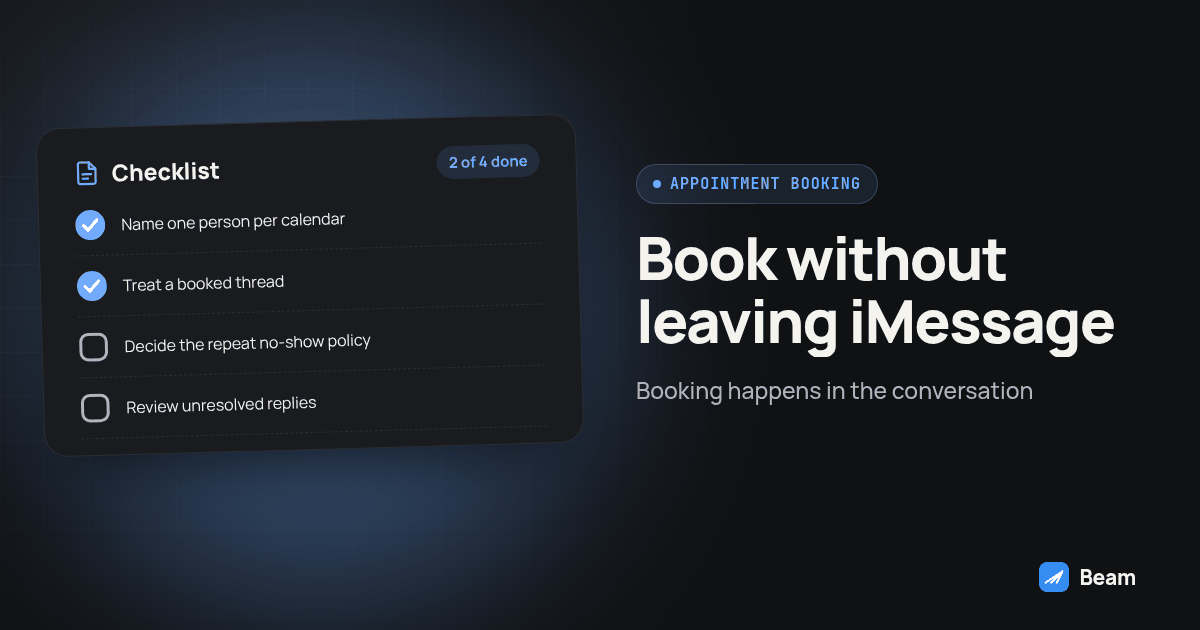
- Name one person per calendar who records the final Showed or No-Show status, from staff check-in, never from the booking confirmation alone.
- Treat a booked thread and a confirmed reply as separate signals.
bot-booked-callmeans a calendar write happened or a window was confirmed in tag-only mode, not that attendance occurred. - Decide the repeat no-show policy before you need it. Write the rule down instead of deciding it ad hoc.
- Review unresolved replies on a schedule, not only when a client complains.
Thread booking, calendar-link texting and manual phone confirmation: how do they compare?
| What you need | Manual phone confirmation | Calendar-link text | In-thread booking (this guide) |
|---|---|---|---|
| Lead stays in one conversation | Yes, if they pick up | No, requires a browser tab | Yes |
| Works when the lead can’t take a call now | No | Yes | Yes |
| Next action required from the lead | Answer the call and agree on a time | Open the link and select a slot | Reply with a time choice |
| Staff effort per routine booking | High, one call per lead | Low | Low |
| Handles an angry or complicated case well | Yes, a person is already on the line | No, the link doesn’t know the lead is upset | Only if the pause conditions catch it and hand off |
| Android and iPhone coverage | Voice call on either phone | Browser booking on either phone | Test iMessage, RCS and SMS separately |
| Proves attendance, not just booking intent | No, needs separate check-in | No | No, needs separate check-in |
Use this comparison to choose a workflow to test, not to predict conversion lift.
What do agencies actually ask before switching to this?
Public vendor material shows interest in this workflow: iBluSend’s appointment booking page describes scheduling through text conversations. That is evidence of a marketed use case, not independent proof of demand volume or better attendance. An agency should ask whether its client needs initial booking, reminders for existing visits, or both, then test those paths separately.
The honest caveat: a text reply is still just a reply. It confirms someone read a message and responded, not that they will show up. Do not let a clean confirmation rate get reported to the client as an attendance rate.
What should an agency hand the client before flipping this live?
Give the calendar owner four things before turning on the full flow: the completed test results from this guide, a named person who owns unresolved replies, a named person who records final attendance, and a written rule for a repeat no-show. None of those are automated, and none should be.
Pair this with the voice side of the relationship if the agency also runs AI calling. RizzDial’s guide to calendar selection for AI voice agents in GoHighLevel covers the equivalent decision points on the call side, so a lead who books by voice and one who books by text end up governed by the same calendar rules instead of two disconnected systems.
Run the dry-run webhook test, the availability check and the reschedule test on a calendar you control first. Once those pass, text our team to try it on a real client calendar.
What do agencies and clinics ask before making the switch?
How long does it take to get iMessage appointment booking live in GoHighLevel?
Allow time for calendar setup, webhook configuration and testing before any client calendar goes live. Treat rollout as complete only when booking, delivery, reply, reschedule and attendance checks pass. Setup time depends on the account.
Does the assistant replace our GoHighLevel calendar and workflows?
No. GoHighLevel stays the calendar and workflow system of record. A thread is only marked booked after the calendar confirms the appointment, and if the write fails after a lead agreed, the assistant pauses itself and alerts the team to lock it in by hand.
What happens if the lead is on Android, not iPhone?
Beam uses RCS when the Android phone and carrier support it, with SMS fallback otherwise. Keep the same calendar validation rules, but test delivery and replies on each channel. Read receipts, typing indicators and message presentation can differ; bubble color alone does not verify the booking.
Does this replace our confirmation calls and no-show follow-up calls entirely?
Not for every case. Keep a human on urgent changes, complicated conflicts and leads who ask to speak with someone. The text-based flow handles the routine booking and reminder volume so staff can spend their time on the exceptions.
What does it cost to set this up with Beam?
Beam does not publish pricing for this workflow on its blog. Text our team to try it and get a quote scoped to your calendar count, line setup and client volume.