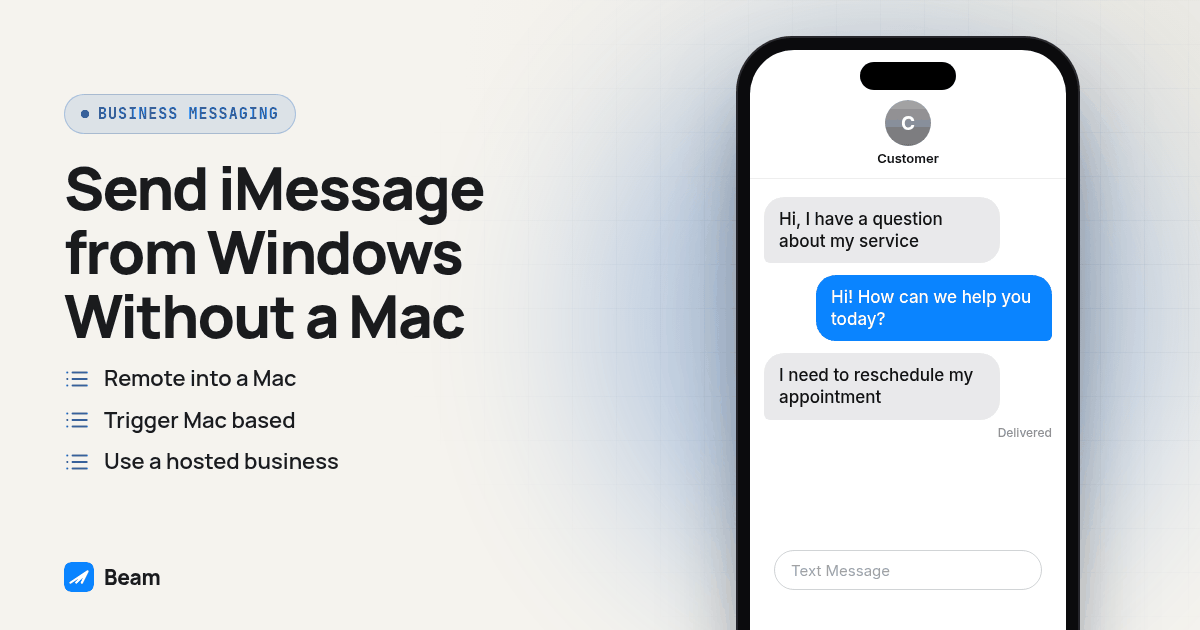
Windows does not include Apple’s Messages app, so there is no native iMessage client to install. A business can use a Mac through remote access, run Mac dependent automation, or choose a hosted business line with a browser inbox or HTTPS API. The hosted route removes the local Mac from the team’s workflow, but it does not remove the need to verify recipient routing, replies and opt out handling.
For agencies and service teams, the practical decision is where the messaging setup runs, what the employee uses, and who checks that a message and its reply reached the right business thread.
Why can’t you install iMessage on a Windows PC?
Apple’s Messages app is provided for Apple’s platforms, not Windows. A Windows user therefore cannot install the macOS app and sign in as though it were a normal Windows program. A web search may surface remote access products or projects that connect to a Mac, but those approaches still depend on Mac hardware or services operating elsewhere.
For a business, map the whole workflow: who owns the sending line, which team members can see conversations, how an inbound reply is routed, and what happens when the recipient cannot use iMessage. A solution that only opens a remote desktop window may solve access for one operator without answering those operational questions.
It is also important to distinguish iMessage from Apple’s Messages app. iMessage is a messaging channel used by eligible Apple devices. Messages is the app people use on supported Apple devices to view conversations. A Windows workflow can reach a business messaging service through a browser or API, but that does not turn Windows into a native Messages client.
What are the options for a business that has no Mac?
There are three common arrangements. Each puts the Mac dependency in a different place, or removes the team’s need to operate one locally. Before choosing, ask who maintains the sending path and how staff will handle inbound conversations.
- Remote into a Mac. The business keeps or rents a Mac, signs in to the needed account, and accesses its desktop from the Windows PC. The Windows computer is acting as a remote screen and keyboard. The Mac still needs power, network access, account access and maintenance.
- Trigger Mac based automation remotely. A script or bridge runs on a Mac and receives work from another application. Staff may initiate the task from Windows, but the automation host remains a Mac. The business has to understand what the code accesses and how that machine is maintained.
- Use a hosted business messaging line. A provider operates its messaging infrastructure and gives the team a browser inbox, API, or both. The employee’s Windows computer connects to the web service. The provider’s documented channel and account behavior still matter, so verify that the service supports the workflow you need.
The hosted model removes a Mac from the team’s device setup, while making account access, messages and replies dependent on the provider. Compare those responsibilities before moving a live workflow.
Does remote access to a Mac solve the business problem?
Remote access can make a Mac’s desktop available to someone at a Windows PC. It may suit occasional access to a Mac the team already has, but does not remove that machine from the workflow. If it is offline, signed out, unreachable or being updated, the remote user may not be able to work.
There is a second consideration: the desktop experience may not fit a shared team process. If several staff members need to cover a customer conversation, establish who can access the Mac, whether work is visible in one shared inbox, and how the next person knows a reply arrived. A remote screen can expose an app without supplying the role permissions, handoffs or CRM visibility that a team expects.
Before relying on remote access, try the workflow from the Windows location where staff will use it. Confirm that the Mac remains reachable, that the correct account is active, and that incoming replies can be seen and answered. Decide who handles updates, login recovery and access when the primary operator is away. These are operating questions, not Windows installation questions.
Do Mac based scripts and bridges remove the Mac requirement?
When a messaging script depends on macOS, the computer running it still has to be a Mac even if a Windows application triggers it. A remote server can call the script, but the host requirement and its maintenance needs remain.
Check the project’s own documentation for supported operating systems, permissions, setup steps and intended use. For example, the iMessage SDK project documentation describes a macOS based setup and its local permissions. Treat such documentation as the source for what that specific project supports; do not assume every project has the same behavior.
For a business workflow, also document what happens after an error. Who notices that the host is offline? Where are failed attempts recorded? How does an employee see an incoming reply? A script that can submit text is only one part of a complete messaging process. Avoid putting customer conversations into an unmaintained machine just because the first test worked.
How does a hosted business line work from Windows?
A hosted line moves the team’s access point to a browser or API. A staff member signs in to the provider’s web inbox from Windows and works with the available conversation tools. A software integration can instead make an HTTPS request from an application server. Neither path requires the staff computer to run macOS.
Beam’s product documentation describes business lines, an inbox, API access and channel routing. iMessage is available for eligible recipients. Beam can use RCS for Android recipients where the phone and carrier support it, with SMS fallback where configured and supported. SMS remains subject to the rules for its number type. The operating system on the employee’s desktop does not determine recipient eligibility or carrier support.
If your team uses GoHighLevel, its workflow can send through Beam using a Custom Webhook action. The workflow is configured in GoHighLevel and Beam; it is not a Windows desktop automation. Read Beam’s GoHighLevel iMessage guide for the integration path and Beam’s iMessage API page for the API option. Check the account setup and test each route before you move a client workflow.
Keep the identity and message history question in view. A dedicated business line and shared workspace can make it easier for an authorized team member to cover a conversation, but you should confirm the actual user access, history and routing behavior for your account. A browser login by itself does not say who owns a number or what records your CRM stores.
How can an API send a message from a Windows environment?
Because an API request uses HTTPS, the client can run in a Windows service, backend application or cloud function. The client submits the request; the messaging provider handles the configured line.
Beam’s API uses an authenticated request to the messages endpoint. Keep the workspace key on a server or in a managed secret store, not in browser code or a public repository. Use a phone you control for the first test. The documentation for the Beam API send endpoint describes the current request fields; the general API quickstart covers initial setup.
An accepted request is not the same as a delivered message. Save the returned identifier, then check the message’s later status using the Get a Message documentation. For inbound replies, configure an event webhook and follow the event documentation. Your own integration is responsible for matching an event to a contact and handling it safely.
A successful HTTP response does not prove that a person saw a text. Preserve the status and channel information, compare it with the controlled phone, and confirm the conversation and reply appear in the CRM your staff use.
How do the approaches compare?
Compare the equipment your organization operates and the way staff reach replies. This describes the general arrangement, not a guarantee about a specific account.
| Approach | What the Windows user does | Mac required for the team’s setup? | Reply handling to verify |
|---|---|---|---|
| Remote desktop | Opens a remote session to the Mac | Yes, the remote Mac remains part of the workflow | Whether staff can share access and see the same conversation |
| Mac based script or bridge | Triggers an integration from a Windows tool | Yes, a Mac runs the script | How the script captures replies and reports failures |
| Hosted browser inbox | Signs into a web workspace | Not on the team’s computers | Shared thread access, user permissions and notifications |
| Hosted API | Sends HTTPS requests from an application | Not for the API client machine | Status checks, event webhooks and CRM matching |
The hosted options shift some operation to a service provider, while leaving your team responsible for account configuration, consent, contact data and workflow testing. A Mac based option leaves the machine and its software in your operating environment. Decide based on the staff workflow and maintenance owner, not only the first message you can send.
How should you test the Windows workflow before using it with customers?
Run a controlled test from the actual Windows computer and account your staff will use. Choose a phone you own or have permission to test, and keep the initial checks away from customer records. This procedure checks both the computer experience and the messaging path.
- Record the intended setup. Write down whether the test uses remote access, a hosted inbox or an API, which workspace and line should send, and which controlled phone should receive the message.
- Sign in on the Windows computer. Open the browser or remote access tool your staff will use. Confirm the right business account, user and workspace before opening a conversation.
- Send one short test message. Use a neutral message to a phone you control. Record the time and message identifier if the system provides one. Do not interpret an accepted request as delivery confirmation.
- Check the later status. For an API send, use the documented status lookup. For an inbox send, inspect the conversation’s available status. Compare the status with what is visible on the recipient phone.
- Reply from the controlled phone. Send a reply and confirm it appears in the expected business thread. If the integration uses a webhook, confirm the event reaches the test endpoint and is matched to the intended contact.
- Test a non iMessage route. If Android recipients matter to the workflow, use an Android phone you control. Confirm which channel is selected and what happens when RCS is unavailable. Do not assume one test proves every recipient or carrier behaves identically.
- Check team access. If another employee needs to cover conversations, sign in as that authorized user and confirm they can find the same thread with the intended permissions.
- Test opt out handling. Use the controlled test contact to verify that a STOP request is recorded and that the workflow suppresses later messages as intended. Keep this test separate from customer lists.
- Review the evidence. Compare the request, status, phone display, reply and opt out record. Note any unresolved step and repeat the test after changing the relevant setting.
For Mac based setups, check host availability and whether another authorized person can recover access. For hosted setups, check account access, statuses and webhooks. Verify the workflow before involving a customer.
What should you check before moving a team off a Mac?
Inventory the current Mac’s tasks: remote access, scripts, local state, notifications or system connections. Identify each replacement and move one workflow at a time so a reply failure is not mistaken for a send failure.
Next, confirm number and channel behavior. iMessage lines do not need A2P 10DLC registration, but SMS fallback through a local number does. Toll free numbers require verification and short codes require carrier approval. RCS depends on recipient device and carrier support. Keep consent records, honor opt outs and apply your team’s safeguards to every route.
Then decide how staff will cover replies. Name the inbox owner for each business period, set access for backups, and check that messages reach the right CRM record. Confirm how the team can identify queued, delivered or failed messages using the available product tools. If a workflow initiates a phone call after a text exchange, the RizzDial voice workflow guide is a separate option to review; it does not change how the Beam messaging route works.
Finally, document the rollback. Keep the old process available until the new route has passed the controlled send, reply, Android and opt out checks. Record who can restore the old process and which system is authoritative for message history. This gives the team a specific recovery path if the first live workflow reveals a missing permission or integration step.
What do buyers ask about sending iMessage from Windows?
Can I install Apple’s Messages app on Windows?
No. Apple does not provide a Windows version of Messages. To use iMessage from a Windows computer, a team needs a Mac based option or a service with a browser inbox or API.
Can I send an iMessage from Windows without owning a Mac?
A hosted business line can let your team sign in through a browser or send requests to an HTTPS API without operating a Mac locally. Confirm the service’s channel behavior, inbox, reply path and account requirements before relying on it.
Does a hosted iMessage line work with GoHighLevel on a Windows PC?
A GoHighLevel workflow can call Beam through a Custom Webhook action. That workflow runs through GoHighLevel and Beam, so the user’s computer operating system does not determine whether the workflow runs. Test the configured workflow with a controlled contact.
Do iMessage lines need A2P 10DLC registration?
Beam’s iMessage lines do not need A2P 10DLC registration. SMS fallback through a local number has A2P 10DLC requirements, while toll free and short code sending have their own carrier requirements. Keep consent records and honor opt outs for every channel.
How should I test a Windows based business texting setup?
Sign in from the Windows computer your team will use, send a message to a phone you control, check the separate message status, reply from that phone and verify the reply reaches the expected thread or webhook. Test an Android route and opt out handling before inviting customers into the workflow.
Text our team to try it.