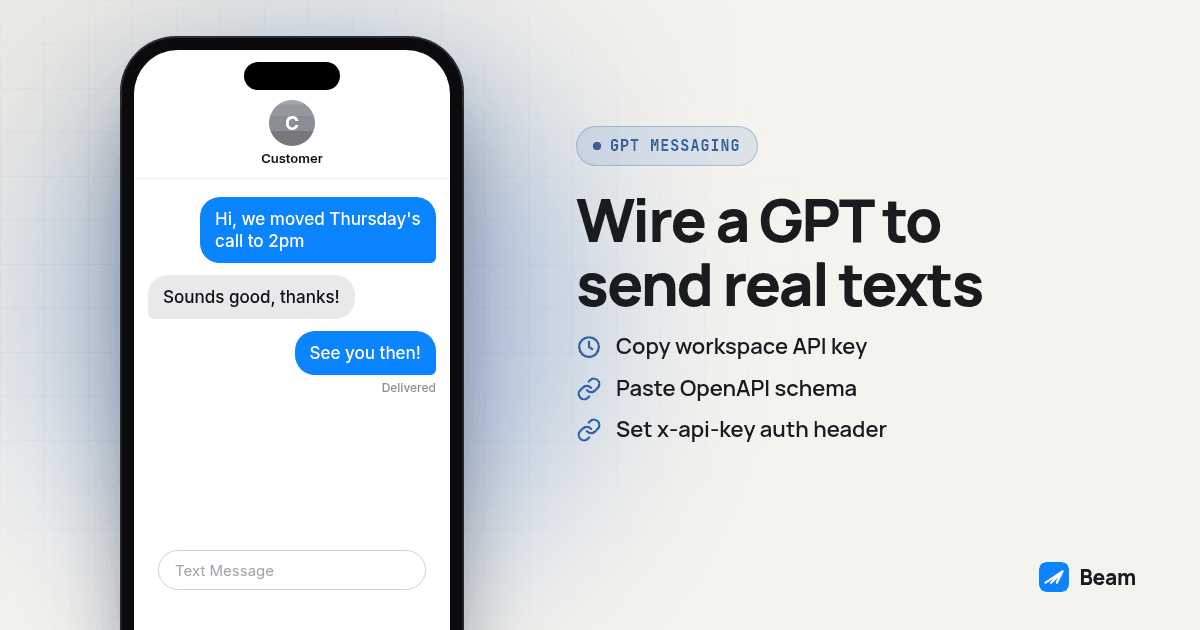
For an agency, the useful question is whether a GPT can turn an approved request into a traceable business text. The connection needs a sending line, an authenticated API operation, and a way to check what happened afterward. This procedure follows Beam’s published contract; use the acceptance test below to verify it in your own workspace before a client relies on it.
What’s the Difference Between a GPT That Talks About Texting and One That Can Send One?
A stock GPT can describe A2P 10DLC rules or explain the difference between iMessage and SMS all day, because that’s just language. Sending a message is a side effect in the real world, and GPT Actions let a custom GPT trigger API operations. OpenAI describes the mechanism as Function Calling: the model decides which API call matches what the user asked for, builds the JSON arguments that call needs, and then the Action actually executes it against your schema (OpenAI: GPT Actions introduction).
Asking an assistant to draft a text does not itself deliver that text. This setup adds a sending operation to a GPT you configure. The GPT is the thing deciding to send, and Beam’s line is where the text comes from.
How Do I Actually Wire a Custom GPT to Beam’s API, Step by Step?
This assumes you already have a Beam workspace with an assigned line, and that you’re comfortable pasting a server-side credential into OpenAI’s editor (it’s encrypted at rest, per OpenAI’s own documentation, but treat it like any other production key).
- Get your Beam workspace key. Sign in to Beam, open Settings, and copy the API key. Every
/v1/*request authenticates with this key in anx-api-keyheader, per Beam’s published OpenAPI contract and developer docs. Keep it server side in spirit even though it’s going into OpenAI’s own hosted config, not into a browser you control. - Open your GPT’s Configure tab and add an Action. Inside the GPT editor, go to the Actions section and create a new action. OpenAI’s own getting-started guide walks through pasting a schema directly into that box rather than requiring a hosted URL (OpenAI: GPT Actions getting started).
- Paste in Beam’s OpenAPI schema. Beam publishes the full OpenAPI 3.1 contract in its published OpenAPI schema. Keep only the operations this GPT needs, along with their referenced components and security definitions:
POST /v1/messagesandGET /v1/messages/{id}. - Set authentication to API Key. OpenAI’s editor supports exactly three authentication modes on an Action: none, API Key, or OAuth (OpenAI: GPT Actions authentication). If your editor exposes a custom authentication header, pick API Key, choose that option, name the header
x-api-key, and paste your Beam workspace key as the value. This matters: Beam’s contract defines anapiKeysecurity scheme in a header namedx-api-key, not a standardAuthorization: Bearerheader, so a GPT Action set to the generic “Bearer” option will send the key in the wrong place and will not match the documented authentication contract. OpenAI’s production limitations say arbitrary custom headers are unsupported. Verify that your editor’s authentication control can send x-api-key; do not assume adding a header parameter to the schema configures authentication. If the required authentication header is unavailable, this direct setup needs a server-side adapter that authenticates the Action and supplies Beam’s header. Do not proceed with a mismatched Bearer setting. - Check the imported action names and parameters. After import, note the operation ID and the fields it expects, for example
toandmessageon the send operation, since you’ll reference those names in your instructions. - Write instructions that keep the GPT inside guardrails. Tell it explicitly: confirm the recipient’s phone number back to the user before sending, never send to a number the user hasn’t provided in that conversation, and never describe a
queuedresponse as delivered. - Click Test next to the action. OpenAI’s getting-started guide specifically calls out a Test button beside each action that shows the detailed request and response. Run it against one consented phone number you control.
- Read the real response shape, which Beam documents as
{"id":"41","status":"queued","to":"..."}. A 200 and a queued ID mean Beam accepted the request into its send queue, not that the text has landed. - Add the status-check operation too,
GET /v1/messages/{id}, and have the GPT call it a few seconds later, or check the Beam inbox yourself, before you tell anyone the text went out. - Decide who can see this GPT before you publish it. A GPT that can send real texts from a real business number is not something to leave set to public while you’re still testing.
How Does the Model Decide to Make the Call At All?
This is the part people skip past. Function Calling works off the schema’s operation descriptions and parameter names, plus whatever you wrote in the GPT’s instructions, not off the user’s phrasing matching some fixed command. If a user types “let the Thompson lead know we moved Thursday’s call to 2pm,” the model has to connect that sentence to the send operation, infer that message should be a short text with the new time, and either already know the recipient’s number from earlier in the conversation or ask for it. That’s exactly the three-step process OpenAI describes: match the request to an API call, build the JSON for it, execute it (OpenAI: GPT Actions introduction). The instructions field is where you push it toward asking rather than guessing a phone number.
Which Build Actually Fits What You’re Trying to Do?
“ChatGPT and texting” covers at least three different things people are usually trying to solve, and they are not interchangeable.
| Decision | Custom GPT Action | Drafting a text in chat | Beam MCP agent connection |
|---|---|---|---|
| Direction | GPT requests an outbound Beam text | Assistant returns wording for a person to send | Connected agent reads or writes a Beam workspace |
| Who configures it | You, in the GPT editor | The user provides a drafting request | Workspace owner creates a connection token |
| Authentication | Workspace API key in x-api-key | No Beam credential needed for drafting | Bearer token with selected permissions |
| Sending authority | Imported operations and the workspace credential | No Beam send operation connected | Tools allowed by the connection permissions |
| Verification | Check the returned message ID and status | A human must send and check the text | Inspect the tool result and conversation record |
If you want an AI coding agent to read and send on a Beam line as part of its workflow, use the MCP path Codex uses. It has a separate token and permission setup. Do not copy MCP authentication into a GPT Action that calls the v1 REST contract.
What Should the Action’s Instructions Actually Say?
Copy this into the GPT’s instructions field and adjust the names to match your own operation IDs:
When the user asks you to text, message, or follow up with someone by text:
1. Show the recipient's phone number and exact message, then wait for the user to approve before calling sendMessage.
2. Keep the message text itself short and specific to what the user asked for. Do not add marketing language they didn't ask for.
3. Report the actual sendMessage result. If it says queued, say queued, not delivered. Use getMessage with the returned ID to check delivery status.
4. Never call sendMessage more than once for the same request. If the first call fails or times out, tell the user and ask before retrying.
5. Refuse to send to a phone number the user has not explicitly provided or confirmed in this conversation.
That fourth rule matters more than it looks. Beam’s public v1 send contract does not document a request_key for deduplication the way its workflow and email endpoints do, so a GPT that retries blindly on a slow response can send the same text twice. Catching that in instructions is cheaper than explaining it to a client afterward.
What Actually Breaks the First Time You Try This?
Check three failure points. First, authentication: a Bearer header does not match the documented x-api-key requirement. Verify the configured header name and workspace before changing message content. Second, status interpretation: an accepted request does not establish delivery. Compare the GPT’s explanation with the actual response and Beam’s message status documentation. Third, recipient formatting: the send contract accepts E.164 or a ten digit US number. Start with an explicitly confirmed number in a documented format rather than asking the model to repair ambiguous contact data.
An opt-out rejection also needs different handling from a connection failure. The send contract documents a 403 response for an opted-out contact. Do not retry that request through another channel or number. Check the contact record and stop the send. The GPT should explain the refusal without presenting a rejected request as a temporary delivery delay.
How Can You Run a Repeatable Acceptance Test?
Use this procedure as a release gate for the GPT, not as a claim that importing a schema makes it ready. Keep a small test record with the prompt, approved recipient, approved message, response ID, returned status, and receiving phone observation. Avoid putting credentials or unrelated customer details in that record.
- Withhold the recipient. Ask for an appointment follow up without providing a number. Pass only if the GPT asks for the missing information and makes no send request. A plausible contact name is not sufficient authority to pick a recipient.
- Withhold approval. Supply your consented test number and message, but ask for a preview first. Pass only if the GPT shows the intended destination and text without sending. Then explicitly approve that exact pair for the positive test.
- Compare both sides. Record the returned ID, query its status, and inspect the receiving phone. Check the business sender, exact wording, and conversation continuity. Treat the API result and the phone observation as separate evidence rather than letting one replace the other.
- Check uncertainty without another send. Ask what should happen if a request times out after submission. The expected response is to investigate the existing conversation or message ID, not issue a duplicate. Test failure handling in a controlled setup before allowing client traffic.
- Check replies and ownership. Reply from the test phone and locate the conversation in Beam. Assign a human owner for unexpected replies, wrong recipients, and unresolved status checks. An outbound Action is not automatically a complete reply-handling workflow.
Keep the GPT private until every applicable check passes. Instructions guide model behavior, but they are not a substitute for API permissions or server-side enforcement. For sends, consider explicitly setting x-openai-isConsequential to true in your Action schema so ChatGPT requires confirmation for that operation, as described in OpenAI’s production notes. Retest after changing the schema, instructions, credential, or sending line.
What’s a Quick Checklist Before You Hand This to a Client?
Before handing it off, confirm the Beam workspace key was copied from Settings and never shared in a screenshot or chat, and that the Action’s authentication is set to API Key with a custom header named exactly x-api-key, not the generic Bearer option. Confirm the send and status-check operations are both imported and tested with the Test button, and that the instructions field tells the GPT to confirm the recipient, report queued honestly, and never auto-retry a failed send. Finally, set the GPT’s visibility to private or a specific workspace until a real send has been verified end to end on a test phone you control, and make sure someone on your team knows this GPT can send real texts and how to find it if it ever needs to be pulled.
What Do People Keep Asking About This?
Do I need OAuth to connect a custom GPT to Beam, or is an API key enough?
An API key is enough for this build. OpenAI’s GPT editor lets you choose API Key as the authentication method on an Action and store the key encrypted on their side. OAuth is a separate option meant for per-user sign-in flows; Beam’s own hosted MCP connector currently supports bearer-header HTTP and a stdio bridge, not OAuth-only clients, but that limitation applies to the MCP connector, not to a GPT Action you build yourself against the OpenAPI spec.
Does sending a text through a custom GPT Action need A2P 10DLC registration?
The channel and number type determine the registration requirements, not the GPT Action. Beam iMessage lines do not need A2P registration. SMS on local 10DLC numbers needs A2P 10DLC registration, toll free numbers need toll free verification, and short codes need carrier approval. Confirm the sending path before testing fallback.
How long does this setup actually take?
There is no fixed setup time. Importing the schema and configuring authentication are only part of the work. Plan time to test recipient confirmation, message status, failure handling, and the sender identity on a phone you control before giving anyone else access.
Can I reuse this for GoHighLevel workflows too?
No, that is a different integration path. GoHighLevel workflow sends go through a Custom Webhook step that posts to Beam’s workflow endpoint with a workspace bearer token, not through a GPT Action. If the GoHighLevel side is what you need, start with Beam’s GoHighLevel iMessage setup guide instead.
Find that guide at Beam’s GoHighLevel iMessage setup; this article stays focused on the GPT Action build.
Is this the same thing as texting ChatGPT itself from my iPhone?
No. A conversation with ChatGPT and an outbound business text are different workflows. Here, a custom GPT calls Beam’s API to send an approved message to someone else from your business line. The recipient does not need to operate your GPT to receive that message.
The final check is making sure the GPT reports what actually happened instead of what it assumes happened. Start with Beam’s iMessage API to read the full contract before you trim it down for the Action, and if the agent on the other end of this needs its own permissioned connection instead of a flat workspace key, the Codex MCP setup is the scoped alternative. If the business also needs AI voice calls, RizzDial’s guide to giving your AI agent a phone covers that side of the same lead.