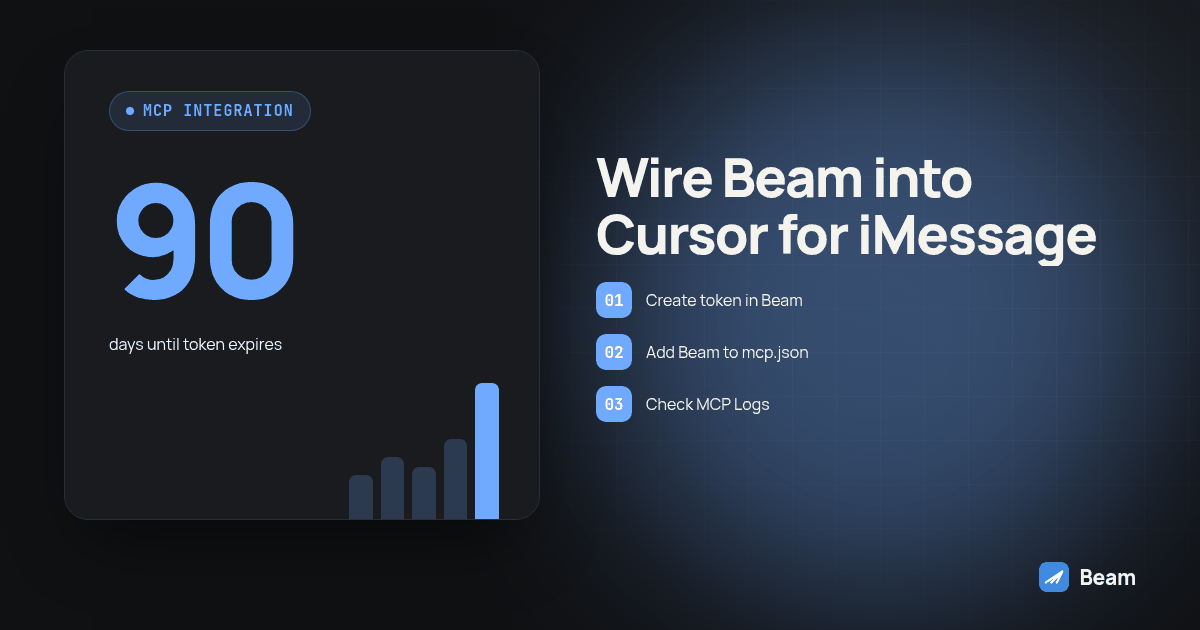
TL;DR: Create a Beam connection token in Settings, Developer access, MCP & API, then add a
beamserver to~/.cursor/mcp.json(every project) or.cursor/mcp.json(one project) with aurlfield pointed athttps://beam.aisync.link/mcpand aheadersobject carrying"Authorization": "Bearer ${env:BEAM_TOKEN}". Reload Cursor, open MCP Logs in the Output panel (Cmd+Shift+U) and confirm there is no authentication error, leave tool approval on, then send one test text to a number you control before trusting it with anything real.
Why would Cursor need its own iMessage number at all?
Cursor’s job stops at the repository. It edits files, runs commands, and talks to whatever model sits behind it, and none of that reaches a phone on its own. What Beam adds is a separate workspace with its own data: real conversation history with actual contacts, the text assistant’s current configuration, the numbers assigned to the account, and open calendar slots, all reachable through the same Bearer token Beam hands to any developer tool.
That is a different kind of access than most things wired into an editor. A linter only touches files you already own locally, while a Beam connection reaches a real person through a real phone number. That is why the token carries specific permissions instead of blanket access, and why checking the connection before trusting anything it reports is worth the extra minute.
The same workspace is reachable without an agent at all, through Beam’s iMessage API, for a team that would rather call the endpoint directly from its own backend. Cursor is one stop in an agent-by-agent series: Grok Bot and Gemini CLI already cover the same workspace from a cloud bot and a terminal agent.
How do I create a connection token in Beam first?
Cursor needs a token before any config edit matters, and that token only ever comes from Beam. These permissions and expiry rules are documented in Beam’s developer access reference.
- Sign in directly as the workspace owner. Client view does not show developer settings.
- Open Settings → Developer access, MCP & API.
- Name the connection something recognizable later, such as “Cursor.”
- Choose its permissions. Read and train are selected by default, covering reading conversations and drafting assistant changes without sending anything. Publishing, automation, sending, and booking each need to be turned on explicitly, only once you trust what the earlier steps produce.
- Click Create connection token and copy it immediately. It is shown once, it expires after 90 days, and it cannot be displayed again once you leave that screen.
If this connection is for an agency client rather than your own business, sign in to the agency workspace first and choose the specific client under Workspace this connection can access before creating the token. One token reaches one workspace and cannot be pointed at a different client afterward.
How do I add Beam to Cursor’s mcp.json?
With the token copied, open Cursor’s MCP settings (Cursor Settings, MCP) or create the file by hand. Cursor documents a remote server as a url field plus a headers object, and a ${env:NAME} interpolation syntax for pulling a value out of your shell environment rather than writing it as a literal string (Cursor’s MCP documentation). Export the token somewhere Cursor’s process will read it:
export BEAM_TOKEN="paste_your_token_here"Then add this block to mcp.json:
{
  "mcpServers": {
    "beam": {
      "url": "https://beam.aisync.link/mcp",
      "headers": {
        "Authorization": "Bearer ${env:BEAM_TOKEN}"
      }
    }
  }
}
Save the file and reload the window, or fully restart Cursor, so you can check the connection with the intended environment available.
Should the config go in the project file or the global file?
Cursor reads two different mcp.json locations, and which one a Beam connection belongs in depends on how many codebases should be able to text through it.
- Create
.cursor/mcp.jsoninside a single project folder for a connection scoped to that codebase alone, the right choice for a client-specific build with its own workspace token. - Create
~/.cursor/mcp.jsonin your home directory for a connection every project on that machine should share, the simpler choice for a personal setup where one Beam workspace covers everything you build. - Add
.cursor/mcp.jsonto.gitignorein any shared repository, since even an${env:BEAM_TOKEN}reference tells anyone reading the repo that a texting connection exists.
If you configure both locations, use distinct server names for separate workspaces and verify each with workspace_read. Avoid defining two different client connections under the same beam name.
Why reference the token with ${env:BEAM_TOKEN} instead of pasting it in?
Because mcp.json is a plain text file that tends to end up places a credential should not: a shared repository, a zipped project sent to a contractor, a screenshot in a support thread. Cursor’s ${env:NAME} syntax reads the value from an environment variable at launch, so the file itself carries a variable name, never the token. If that file is ever committed by accident, there is a name to remove, not a live credential to rotate under time pressure.
This matters more for a Beam connection than for most servers an editor talks to, since the token’s permissions decide whether a leaked value can only read a conversation or can also send on your behalf. Keep the export line in your shell profile, not in anything that leaves your machine.
How do I confirm the connection in Cursor’s MCP Logs?
Listing in Cursor’s MCP panel only means the JSON parsed correctly, not that the token works or points at the right workspace.
- Open the Output panel in Cursor with Cmd+Shift+U.
- Select MCP Logs from the dropdown at the top of the panel.
- Look for a connection error, an authentication failure, or a server crash next to the
beamentry, per Cursor’s own MCP documentation. - If the log is clean, ask Cursor directly: “Call workspace_read and tell me the workspace name and ID. Stop if it is not my intended workspace.” A clean log only proves the server responded, not that the token belongs to the workspace you meant to connect.
- Once the name and ID match, ask it to call
assistant_readnext and confirm the assistant configuration looks like what you expect. Both calls use only read permission, so neither can change anything even if the token turned out to be scoped to the wrong client.
If the log shows an authentication error, confirm BEAM_TOKEN is actually set in the environment Cursor launched from, not a different terminal tab you had open at the time. When the workspace name does not match, the token was created under the wrong account or client, and the fix is going back to Beam’s settings, not editing the config file further.
What does tool approval actually look like once Cursor is connected?
Cursor asks for approval before running an MCP tool by default, the same review step it applies to a terminal command. The prompt shows the tool name and its arguments, with an arrow to expand exactly what Cursor is about to send before you allow it. Cursor’s Run Modes extend this: in Auto-review mode, only allowlisted tools run immediately, while everything else routes through a classifier. That is not a promise of manual approval for every send; choose settings that require your confirmation for Beam writes (Cursor’s MCP documentation).
Leave that approval step on for Beam specifically, even if you loosen it elsewhere. Approving a read call like conversation_read on sight is low stakes. Read a message_send call before it reaches a phone, and review draft_publish because it changes the assistant’s future replies.
How do I send a first test text and read a reply back?
Run this against a phone you control before Cursor touches a real contact. After the read checks pass, explicitly enable send permission in Beam. Confirm the workspace has an assigned, capable line and that the test contact can receive messages.
- With the connection confirmed in MCP Logs, open a chat in Cursor and ask: “Use the Beam connection to send a text to [your own number] that says ‘test from Cursor.’”
- Approve the
message_sendtool call when the prompt appears, after checking the recipient and message text it shows you. - Check the phone you named. An accepted call back from Beam means the request went through, not that it already arrived; wait for the text to land before moving on.
- Reply to that text from your phone, then ask Cursor: “Read the latest message in that conversation and tell me what it says.”
- Confirm the reply you sent is the one Cursor reads back. If it reports an older message, the read call likely ran before Beam recorded the reply; ask again after a pause rather than assuming the connection is broken.
Only after this round trip works on your own number is it worth pointing the connection at an actual lead or client contact.
Which connection method should I use: mcp.json, the stdio bridge, or the REST API?
Most setups are fine with the mcp.json entry above. Two specific situations call for one of Beam’s other paths.
mcp.json (HTTP) | stdio bridge | REST API | |
|---|---|---|---|
| Good for | A first connection, or any normal Cursor setup | A client that needs a local stdio process to reach Beam | A backend service that calls Beam directly, with Cursor only reading what it returns |
| Where it lives | .cursor/mcp.json or ~/.cursor/mcp.json | Same files, with command/args/env instead of url | Not Cursor’s config at all; your own server code |
| Auth | headers object with a Bearer token | BEAM_TOKEN in the env block | Authorization: Bearer header on each call |
| Runs where | Cursor reaches Beam’s remote endpoint directly | A local Node.js process on your machine | Wherever your backend runs |
| Setup effort | One JSON block | Download beam-mcp.mjs first, then point command at it | Most code to write, least tied to Cursor specifically |
The stdio bridge, beam-mcp.mjs, runs on Node.js 20 or newer with no extra packages and reaches the same tools as the HTTP entry. It suits a client that needs stdio transport; the bridge still requires network access to Beam, using {"type": "stdio", "command": "node", "args": ["/absolute/path/beam-mcp.mjs"], "env": {"BEAM_TOKEN": "${env:BEAM_TOKEN}"}} in place of url. Start with the mcp.json entry and only move to the bridge once a reason for a local process shows up.
What should I lock down before this goes live?
A connection token is not read only just because that is how it was set up on day one.
- Give Cursor its own token, separate from anything a person uses to sign in, so you can see what it touched and cut it off without disturbing your own access.
- Start with read and train only. Add send, automation, publish, or book one at a time, once the step before it has behaved the way you expected.
- Watch the rate limit. Beam’s API allows 60 requests per minute per token, documented on Beam’s developer access reference; a retry loop without backoff reaches that ceiling before it fixes anything.
- Revoke in Beam, not in Cursor. Deleting the
mcpServersentry stops Cursor from calling the server, not the token. Revoke the connection in Settings to actually cut off access. - Treat an accepted send as unproven delivery. Beam accepting a
message_sendcall means the request went through, not that it reached a phone.
Incoming replies are untrusted content, not instructions. A message telling Cursor to ignore its rules is still just a stranger texting, and should be read that way.
Is this different from giving Cursor phone calls?
Yes, two separate systems built for separate jobs. Beam handles text: iMessage, RCS, SMS, and FaceTime Audio, including to a voice agent on the other end. Placing or managing phone calls from the same editor is covered in adding phone calls to an AI agent over MCP, the matching setup on RizzDial’s side for coding agents including Cursor. Connect both and the same Cursor session can read a text thread, draft a reply, and start or review a call, but each connection carries its own token and permissions, since nothing about one system grants access to the other.
Create the token with only the permissions this job needs, add one JSON block to mcp.json, and confirm a clean line in MCP Logs before Cursor reaches a real conversation.
What do people ask about connecting Cursor to Beam?
Does Cursor support OAuth for Beam instead of a Bearer token?
Cursor does support OAuth for MCP servers that are built around it, including automatic discovery for a server that requires a browser login. Beam's remote endpoint is not one of those servers. It authenticates with a Bearer token inside a headers object, which Cursor documents as its own supported field on a server entry, not a stand-in for OAuth or a lesser option.
What is the difference between the project .cursor/mcp.json and the global ~/.cursor/mcp.json?
The project file, .cursor/mcp.json, lives inside one codebase and only loads when Cursor has that folder open, which is where a Beam connection belongs if just one project should be able to text through it. The global file, ~/.cursor/mcp.json, lives in your home directory and loads for every project you open in Cursor, which fits a Beam connection you want available everywhere without adding the block again.
Why use ${env:BEAM_TOKEN} instead of pasting the token directly into mcp.json?
A literal token sitting in mcp.json ends up wherever that file goes: a shared repository, a screenshot, a support ticket. Cursor's own interpolation syntax reads the value from an environment variable at launch instead, so the committed file carries a variable name, not a credential. If mcp.json is ever tracked in version control by accident, there is nothing in it worth rotating.
How do I know the Beam connection is actually working, not just listed?
A server showing up in Cursor's MCP panel only means the entry parsed without a syntax error, not that the token is valid or pointed at the right workspace. Open MCP Logs in the Output panel and look for a connection error or an authentication failure, then ask Cursor to call workspace_read and confirm the workspace name it reports matches the one you created the token in.
What happens if the person Cursor is texting doesn't have an iPhone?
Beam checks the recipient before it sends anything. iMessage goes to eligible iPhones, RCS goes to Android phones whose carrier supports it, and SMS is the fallback everywhere else. iMessage lines need no A2P registration, but SMS still follows carrier rules by number type, so a 10DLC number still needs 10DLC registration and a toll free number still needs toll free verification.