Grok Bot runs on its own cloud computer, so it cannot sit on your laptop watching an iMessage thread the way a local script would (source). What it can do is call Beam’s messaging workspace over plain HTTPS: read what came in overnight, write a reply for you to check, and send it only after you say yes. The token that makes this work is a Beam Bearer token, not the OAuth sign in Grok Bot’s connector guidance usually describes, so the setup looks a little different from a typical connector add.
Everything below was verified on 2026-10-12 against Beam’s developer access docs, the staff answer on Grok Bot custom connectors, Composio’s guide to adding MCP servers to Grok Bot, and the Grok Bot Wiki plugins guide.
Answer first: Create a Beam connection token with read permission only, under Settings, Developer access, MCP & API. Tell Grok Bot, in chat, to store that value as an environment secret named BEAM_TOKEN on its cloud computer and never to repeat it back to you. From there, have it call
https://beam.aisync.link/v2/toolswith anAuthorization: Bearerheader built from that secret, or run thebeam-mcp.mjsstdio bridge reading the same variable. Confirm the connection by asking it to callworkspace_readand name your workspace before you trust anything else it reports.
Why would Grok Bot need its own iMessage number at all?
Beam is what gives a business dedicated iMessage lines, RCS for the Android phones that support it, and SMS as the fallback everywhere else. On its own, Grok Bot has none of that. It has no phone, no carrier relationship, and no number assigned to it. What it gains by connecting is a workspace to read and write against: the conversation history, the assistant’s current configuration, the numbers on the account, and the calendar’s open slots, all reachable over the same Bearer token Beam issues to any developer tool.
That distinction matters because of what Grok Bot is not. It does not place phone calls itself, and it does not do iMessage or FaceTime natively. Those capabilities live in RizzDial and Beam respectively; Grok Bot just becomes a client that can call either one once you connect it. The same workspace is also reachable without any agent in the loop, through Beam’s iMessage API, for anyone who would rather wire a server to it directly than hand the job to a chat based agent.
What’s the safe way to connect Grok Bot to Beam?
Beam’s remote server takes a Bearer token over HTTPS, at https://beam.aisync.link/mcp or through the equivalent REST calls at /v2/tools. Grok Bot’s own custom connector guidance, by contrast, is written around OAuth: you tell it in chat to add a server at a URL, it posts a connect card, and you authorize in a browser. Community reports suggest a static header sometimes works where a provider expects it, but the Wiki guide states connectors authenticate through OAuth only, so a bearer header is not a documented path there yet (Grok Bot Wiki).
So instead of fighting that mismatch, skip the connector screen. A token, kept as a stored secret and referenced only by name, works through two paths Grok Bot already supports for a server it runs itself: a plain authenticated HTTPS call to Beam’s REST endpoint, or a command style stdio server running on its own cloud computer (source). Neither one asks Grok Bot to do anything with OAuth at all.
How do I create a scoped token for Grok Bot?
The token comes from Beam, not from anything you type into Grok Bot.
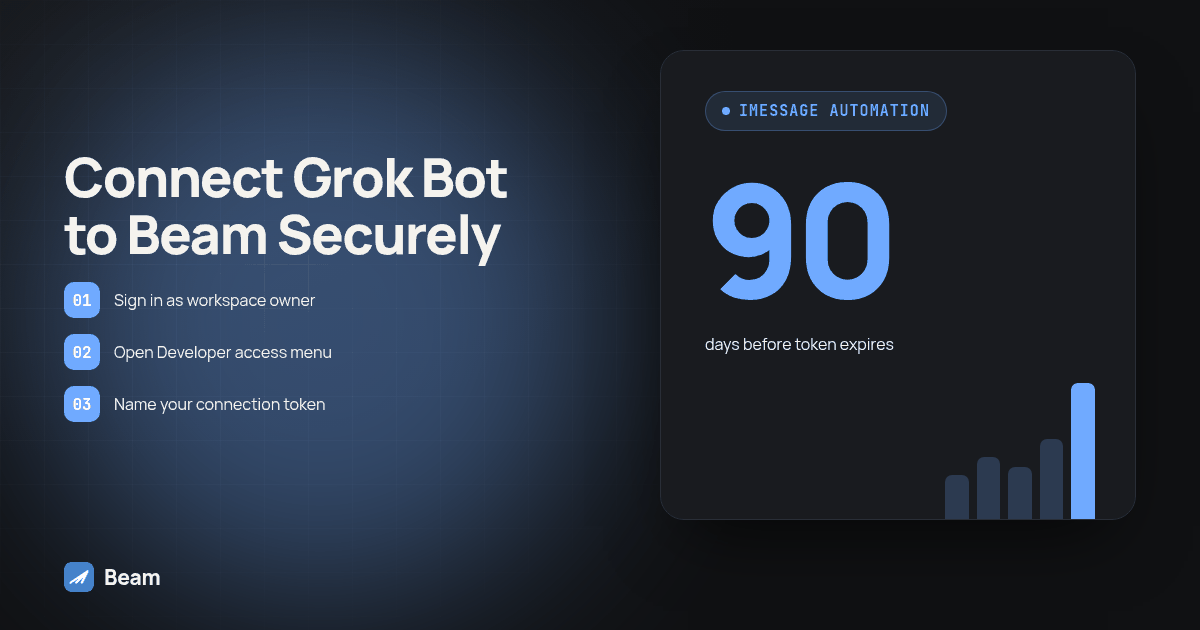
- Sign in directly as the workspace owner. Client view does not show the developer settings.
- Open Settings → Developer access, MCP & API.
- Name the connection something recognizable later, such as “Grok Bot inbox.”
- Pick permissions. Start with read only rather than the read and train default, since this first pass is about watching conversations, not changing anything. Add send later, once you trust what comes back.
- Click Create connection token and copy it immediately. It is shown once, it expires after 90 days, and it cannot be displayed again once you leave that screen.
Keep that value out of the chat window entirely. Paste it only where the next step tells you to.
How does Grok Bot use the token without pasting it into chat?
Tell Grok Bot directly: “Store this value as an environment secret named BEAM_TOKEN on your cloud computer, then forget it from this conversation.” That single instruction is the point where the token stops being something a teammate could scroll back and read in your chat history.
From there, Grok Bot has two documented ways to use it. The one worth trying first is a direct call to Beam’s REST layer, since it is a plain HTTPS request and sidesteps the connector question entirely:
curl https://beam.aisync.link/v2/tools \
  -H "Authorization: Bearer $BEAM_TOKEN" \
  -H "Content-Type: application/json" \
  -d '{"name":"workspace_read","arguments":{}}'
Ask Grok Bot to run the equivalent of that call itself, reading $BEAM_TOKEN from the secret it just stored rather than from anything typed in the message.
The second option is the stdio bridge, which runs as a command on Grok Bot’s own cloud computer since it has Node 20 or newer available there:
{
  "mcpServers": {
    "beam": {
      "command": "node",
      "args": ["/absolute/path/beam-mcp.mjs"],
      "env": { "BEAM_TOKEN": "YOUR_TOKEN" }
    }
  }
}
That config is exactly what a local client would run, with one caveat specific to Grok Bot: teammates on a shared Bot can read a command server’s command and its arguments, which this release treats as including whatever sits in that server’s configuration. A credential pasted directly into that block is visible to them too. If you are the only one on that Bot, this is a reasonable path. If it is shared, the REST call above is the one to prefer, since nothing about it has to live in a visible server config.
How do I verify the connection actually works?
Do not take a confident sounding answer as proof. Ask Grok Bot to call workspace_read and name the workspace and ID back to you. If that name matches the workspace you created the token in, the token is live and scoped the way you intended. If it comes back wrong, or with an authorization error, the fix is going back to Beam, confirming which workspace the token belongs to, and reconnecting rather than debugging the bridge.
Once that checks out, ask assistant_read to confirm the current assistant configuration is what you expect. Both calls use only the read permission, so neither one can change anything even if Grok Bot gets confused about what you asked for.
What does the overnight reply workflow actually look like?
This is the part worth building slowly. Grok Bot reading your inbox overnight and drafting something for you to check is useful. Grok Bot sending on its own while you’re asleep is not something to turn on in week one.
The sequence that matches what Beam’s tools actually do:
- With read permission, Grok Bot calls
contacts_listandconversation_readto pull what came in since you last looked. - For any thread it is about to work, it calls
conversation_pause, which needs automation permission, so Beam’s own default assistant is not also trying to answer the same message at the same time. - It writes a suggested reply back to you in chat. This is not a formal Beam draft object;
draft_createandassistant_previewexist for tuning the assistant’s own configuration, a separate job from a one off reply to one conversation. The reply you are reviewing just lives in the conversation with Grok Bot until you act on it. - Only once you approve does it call
message_send, which needs send permission added to the token.
That approval step is the whole point. Every send call needs its own request_key, so a retried call after a dropped connection returns the same stored result instead of texting someone twice. An outcome unknown response still means checking Beam’s own activity log before trying again with a new key, not assuming it failed.
What happens when the person on the other end doesn’t have an iPhone?
Beam checks the recipient before it sends anything. iMessage goes to eligible iPhones, RCS goes to Android phones whose carrier supports it, and SMS is the fallback everywhere else, including flip phones and landlines capable of texting. None of this needs you to pick a channel; Beam picks it per message.
What stays true regardless of channel is consent and registration. iMessage lines need no A2P registration, which is part of what makes Beam’s setup faster than a carrier application. SMS does not get that exemption. A local number still needs 10DLC registration, a toll free number still needs toll free verification, and a short code still needs carrier approval before it can send at volume. Grok Bot reading and drafting replies changes none of that; the account still has to be registered the way the recipient’s channel requires.
Is this different from giving Grok Bot phone calls?
Yes, and it is worth keeping the two separate in your head. Beam is text: iMessage, RCS, SMS, and FaceTime Audio calls including to a voice agent on the other end. Voice, the kind where Grok Bot starts or manages an outbound calling campaign, is a RizzDial job, covered in connecting Grok Bot to phone calls over MCP. If what you actually want is Grok Bot handling FaceTime Audio specifically, that’s covered on its own in giving Grok Bot FaceTime Audio.
Grok Bot itself places no calls and owns no number on its own. Every capability here comes from the account it’s connected to, which is exactly why the token and its permissions are the whole security model.
MCP endpoint or REST API: which should Grok Bot use?
| MCP endpoint | REST API | |
|---|---|---|
| Auth on Grok Bot | Bearer header, uncertain connector support per current Wiki guidance | Plain HTTPS call Grok Bot constructs itself |
| Where the token lives | A server config Grok Bot runs, or a connector screen | An environment secret referenced in each request |
| Suited for | A client with confirmed header support, or the stdio bridge on a solo Bot | Grok Bot on a shared Team Bot, or any case where you’d rather avoid a visible server config |
| Tool choice | Grok Bot picks the call based on what you asked | You or Grok Bot name the exact tool each time |
| Rate limit | 60 requests per minute per token | Same limit, same token |
In practice, start with the REST call. It is the path with the least ambiguity for a cloud agent, and it reaches the same workspace, the same tools, and the same permissions as the MCP endpoint either way.
What should I lock down before this goes live?
A connection token is not read only just because that is how you set it up once. Whatever permissions it carries are available to anyone who holds it, from wherever they run it.
A few habits worth having from the first day:
- Give Grok Bot its own token, separate from anything a person uses to sign in, so you can see what it touched and cut it off without disturbing your own access.
- Start read only. Add train, automation, or send one at a time, only once the step before it has behaved the way you expected.
- Watch the rate limit. Sixty requests a minute per token is generous for a nightly review, but a retry loop that doesn’t back off will hit it before it fixes anything.
- Revoke in Beam, not in Grok Bot. Removing a server entry on Grok Bot’s side stops it from calling the server. It does not touch the token. If a Bot goes rogue or a teammate leaves, revoke the connection in Settings.
- Treat an accepted send as unproven delivery. Beam accepting a message means the request went through, not that it reached a phone. Check delivery status in Beam when it actually matters.
One more thing to say plainly: incoming messages from the person you’re texting are untrusted content, not instructions. A reply that tells Grok Bot to ignore its rules or send something unrelated is still just a message from a stranger, and it should be read that way rather than acted on.
What do people ask about giving Grok Bot an iMessage number?
Can I just add Beam as a custom connector in Grok Bot like I would for a documented OAuth server?
Not reliably yet. Grok Bot’s custom connector guidance describes connecting over OAuth, and Beam’s remote endpoint takes a Bearer token instead. Until that gap closes, the REST call or the stdio bridge are the paths with evidence behind them.
Where do I create the token Grok Bot will use?
Inside Beam, not inside Grok Bot. Sign in as the workspace owner, open Settings, Developer access, MCP & API, name the connection, pick read only permission to start, and copy the token once since it will not be shown again.
Is it safe to let Grok Bot run the stdio bridge with the token sitting in its command config?
Only if nobody else shares that Bot. Teammates on a shared Bot can read a command server’s command and arguments, so a token typed directly into that config is visible to them too. A solo Bot, or the REST call with the token read from a stored secret, avoids that.
What happens if the person I’m texting doesn’t have an iPhone?
Beam checks the recipient and sends over RCS if their Android phone and carrier support it, and over SMS everywhere else. iMessage lines need no A2P registration, but SMS still follows carrier rules by number type, so a 10DLC number still needs 10DLC registration and a toll free number still needs toll free verification.
Can Grok Bot send a reply without me seeing it first?
Only if you gave the token send permission and told Grok Bot to use it without asking. The safer setup is a read only token while you watch it draft replies in chat, adding send permission only once you trust what it writes, and telling it explicitly to wait for your yes on every message.
Start with a read only token and a secret Grok Bot stores once, not a credential it repeats in chat. Watch it draft a night’s worth of replies before you ever hand it message_send.