Grok Bot does not make or receive FaceTime calls on its own. It is a cloud agent with no Apple account and no phone hardware attached to it, so FaceTime, like a phone number, has to come from somewhere else. Beam gives you a business line that Apple’s network recognizes for FaceTime Audio, and that line can ring through to a person, hand off to a voice agent, or both. Grok Bot’s job, once it has a connection to that line, is everything around the call: reading what the conversation looked like before and after, drafting the iMessage that follows up on a missed call, and keeping its own notes on what happened. None of this is video; Beam’s FaceTime support stops at audio. Everything below was verified on 2026-10-12 against the Beam MCP and developer access reference, the Grok Bot custom connector thread, the Grok Bot plugin wiki, and Apple’s own FaceTime Audio documentation.
Why does a FaceTime Audio call matter more than a text?
A caller dialing FaceTime Audio sees the same screen they’d see calling a friend. Apple describes FaceTime Audio as a normal call placed from the Phone or FaceTime app, carried over Wi-Fi or mobile data rather than cellular minutes (Apple: make FaceTime calls). An iPhone user doesn’t open a separate app or think about which protocol is carrying the audio. They just call, the same way they’d call a family member, which is exactly why an agency or a support team wants that path to actually go somewhere useful instead of ringing into nothing.
That reachability question is bigger than Grok Bot alone. What rings, what an Android caller gets instead, and how Do Not Disturb and Focus settings change the outcome all have their own answers, covered in detail in FaceTime Audio to a business line: what actually rings. This piece picks up from there and stays on the part that’s specific to Grok Bot: what it can see, what it can do, and how you connect it.
What does Beam actually give Grok Bot to manage?
Beam assigns a business line that can receive FaceTime Audio calls. Routing for that line works alongside texting on the same thread: Beam’s documented routing table lists FaceTime Audio as its own channel for Apple devices, next to iMessage, with calls and texts from the same caller resolving to one conversation and one CRM contact rather than two separate records. A connected voice agent can answer and talk during the call itself; Beam’s role is the line, the routing, and the text channel that sits beside it, not the audio content of the call.
If you also want something to actually talk during the call instead of routing it to a person, pair this with giving Grok Bot an AI voice agent on the RizzDial side. Beam and the voice agent are two different jobs on the same line: one answers, the other manages the thread around it.
Grok Bot sits on that second job. With a connection to the Beam line, it can read the conversation tied to the caller, draft the text that follows up after the call, and track its own notes on what it saw, all without owning the audio itself.
How do you connect Grok Bot to that line?
Grok Bot is a cloud agent, so whatever it reaches has to be public over HTTPS; a server on your own laptop never shows up to it (Grok Bot connector thread). Beam’s MCP server already fits that shape: it runs on Streamable HTTP, authenticated with a bearer token header rather than a session on your machine. Here’s the order that actually works.
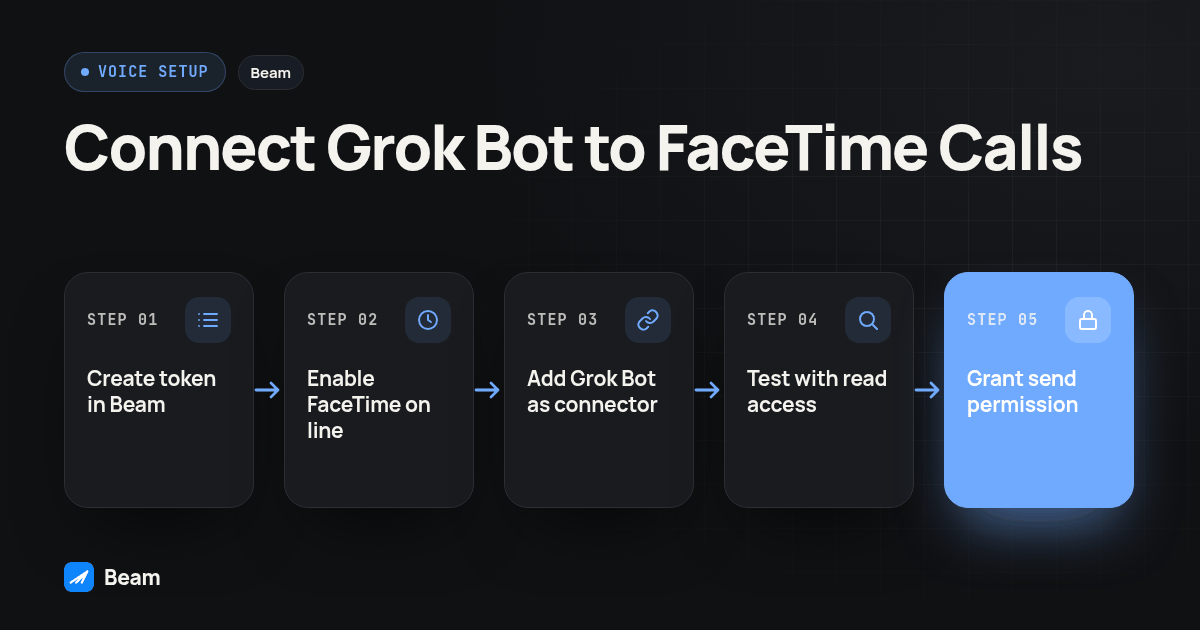
- In Beam, open Settings, then Developer access, MCP & API, and create a connection token scoped to your workspace. Start with read permission only; add send permission later once you trust what Grok Bot is drafting.
- Confirm the Beam line you intend to use already has FaceTime Audio enabled and, if you want the call itself answered live, a voice agent connected to it.
- In Grok Bot’s own chat, name the server and the endpoint directly, something like:
Add a custom MCP server named beam at https://beam.aisync.link/mcp.Grok Bot confirms the name and URL back to you before adding anything, rather than exposing a settings form for it (composio: adding MCP servers to Grok Bot). - Watch for a connect card. The Grok Bot plugin wiki describes connectors authenticating through OAuth; Beam’s endpoint authenticates with a bearer token header instead, so a connect card may never appear and the chat flow may have no field to put that header in (Grok Bot plugin wiki).
- If that happens, go around it instead of pasting the token into the chat. Ask Grok Bot to hold the token as a secret on its own cloud computer and either call Beam’s REST endpoint directly, or run the beam-mcp.mjs bridge as a command style server with the token read from an environment variable rather than written into the command’s own arguments, since teammates on a Team Bot can read a command server’s command and its arguments.
- Ask it something only your workspace can answer, such as the workspace name tied to the connection, before trusting it with anything else.
The REST path from step five looks like this, using the same token as the MCP connection:
curl https://beam.aisync.link/v2/tools \
  -H "Authorization: Bearer $BEAM_TOKEN" \
  -H "Content-Type: application/json" \
  -d '{"name":"conversation_read","arguments":{}}'
And the stdio bridge, if Grok Bot’s cloud computer runs Node.js 20 or newer:
{
  "mcpServers": {
    "beam": {
      "command": "node",
      "args": ["/absolute/path/beam-mcp.mjs"],
      "env": { "BEAM_TOKEN": "YOUR_TOKEN" }
    }
  }
}
Both reach the same tools. Which one works depends on whether Grok Bot’s custom connector flow accepts a header for this particular server; test the chat instruction first, and fall back to the bridge or the REST call only if it doesn’t.
What should you confirm before you trust the connection?
A connection token is scoped to a permission, not to a single tool, so check what you actually granted before Grok Bot touches anything live.
| Permission | What it lets Grok Bot do |
|---|---|
| read | workspace_read, assistant_read, contacts_list, conversation_read, numbers_list, drafts_list, calendars_list, calendar_slots |
| train | draft_create, assistant_preview |
| publish | draft_publish |
| automation | conversation_pause |
| send | message_send |
| book | appointment_book |
Read permission is enough for Grok Bot to watch conversations and draft a follow up for a person to approve. Send permission lets it deliver that text itself. Treat send and book as the ones to add deliberately, after read has been live for a while and its drafts have held up. A deactivated or revoked token stops working immediately from Beam’s side, which matters if a contractor rolls off or a cloud computer gets decommissioned.
What happens when nobody answers the FaceTime Audio call?
Beam’s inbound call routing keeps one outcome list no matter how the call arrived: connected, completed, busy, no answer, failed, or canceled, tied to the caller’s existing conversation and CRM contact rather than logged somewhere separate. A FaceTime Audio call that nobody picks up lands in that list as a no answer outcome, on the same thread that contact’s texts already sit in.
| Call outcome | What’s on the Beam line | What Grok Bot can do with read access |
|---|---|---|
| Connected / completed | Call matched to the caller’s existing conversation | Note that the caller reached someone; usually no action needed |
| No answer | A missed FaceTime Audio call tied to the conversation | Read the conversation, draft an iMessage follow up for approval |
| Failed / canceled | Call did not complete, same conversation record | Flag it for a person rather than guessing why |
This is the workflow the whole setup is for. Someone misses a FaceTime Audio call. Grok Bot, with read permission on that line, looks at the conversation and writes a follow up text, something like checking in on what the caller needed and offering a time to talk. It does not send that text on its own unless you’ve granted send permission; otherwise it sits as a draft for a person to read, edit, and approve. message_send is the same action documented on Beam’s iMessage API reference, so anything you verify there about delivery and read receipts applies to this follow up as well.
Keep its own notes for what it is: Grok Bot’s record of what it saw and did, not a Beam feature. If you want that trail somewhere durable, have it log the caller, the outcome, and whether its draft was approved into whatever task system you already point it at.
Is this different from giving Grok Bot its own iMessage number?
They share one Beam connection but do different jobs. An iMessage number lets Grok Bot read and send texts on an iPhone’s own channel, covered separately in giving Grok Bot its own iMessage number. FaceTime Audio adds a voice channel on that same line, with the audio handled by a person or a connected voice agent, never by Grok Bot itself. A workspace with both connected gives Grok Bot one coherent view: the call that came in, and the thread that follows it, on the same contact.
Setting up one doesn’t require the other. A line can take FaceTime Audio calls without Grok Bot ever touching texts, and it can run iMessage without any call routing attached. Decide which job you actually need before granting permissions for both.
Does this work the same from grok.com or the Grok CLI?
Not quite. Grok Bot’s chat based connector flow is its own thing, separate from grok.com’s web chat, where custom connectors live under Connectors, then New Connector, then Custom, documented at docs.x.ai/grok/connectors, with its own approval screen. A separate Grok Build CLI adds a remote server with a terminal command, grok mcp add --transport http rizzdial YOUR_RIZZDIAL_MCP_URL, shown on the Grok tab of the RizzDial dashboard’s MCP page for calling and voice agent work rather than FaceTime Audio. Keep these three apart when you’re troubleshooting which one actually holds the connection you expect; a token added in one does not show up in the others.
What else do people ask about Grok Bot and FaceTime Audio?
Can Grok Bot place a FaceTime call by itself?
No. Grok Bot is a cloud agent with no Apple account and no phone hardware of its own, so it cannot originate or receive a FaceTime call on its own. A FaceTime Audio call has to land on a business line, such as a Beam line, before Grok Bot can read or act on anything related to it.
Does Beam support FaceTime video, or only audio?
Only FaceTime Audio. Beam’s calling layer works with audio calls over FaceTime; it does not add FaceTime video calling to a business line.
What happens to a FaceTime Audio call that nobody answers?
Beam’s inbound call routing records a no answer outcome tied to the same conversation and CRM contact the caller already has from texting, the same way it records connected, completed, busy, failed, or canceled outcomes for any inbound call. Once Grok Bot is connected with read permission, it can look at that conversation and draft a follow up instead of waiting for someone to notice the missed call on their own.
Is connecting Grok Bot to a FaceTime Audio line the same as giving it an iMessage number?
They use the same Beam connection, but they are different jobs. An iMessage number lets Grok Bot read and send texts; FaceTime Audio adds a voice channel on the same line, with the audio itself handled by a person or a voice agent, not by Grok Bot. See giving Grok Bot its own iMessage number for the texting side on its own.
Does Grok Bot send the follow up text itself, or does someone approve it first?
That depends on the permission you grant the connection token. A read only connection lets Grok Bot draft the follow up for a person to send; granting send permission lets it deliver the message itself. Starting with read only and adding send permission later is the safer order.
A FaceTime Audio line on Beam, plus a Grok Bot connection with read permission, gets you most of the value with the least risk: it watches, it drafts, it never sends anything without a yes. Add a voice agent on the RizzDial side when you want the call itself answered, and add send permission to Grok Bot only after its drafts have earned it.