TL;DR: Build Smart Lists inside GoHighLevel that filter a stale database by pipeline stage, last activity date, consent source and opt-out status before any tag touches a workflow. Trigger the reactivation sequence off that tag, gate every step with an opt-out and DND check, and pace the batch across days instead of one send. The moment a contact replies with real interest, stop the sequence and route that reply to a person or to a RizzDial call instead of a fourth text.
An old GoHighLevel database is not one list, it is several lists wearing the same pipeline. We treat a reactivation push as a GoHighLevel build problem first, a messaging problem second: get the Smart List filters, tags and workflow branches right, and the texting itself is the easy part.
What Counts as a Reactivation-Ready GoHighLevel Database?
More than one Beam prospect has told us the same thing on recent calls: their customers ignore phone calls but they will answer a text. That is the whole case for running reactivation through iMessage instead of another round of outbound dials, and it is also why a database that nobody has touched in months is worth testing before an agency spends more budget acquiring new leads.
Inside GoHighLevel, “reactivation-ready” is a specific, checkable state, not a feeling about how old a contact looks. A contact qualifies when four things are true at once: the pipeline stage reads something like Dead, Lost, or Nurture rather than an open stage a rep is actively working; the last activity date, pulled from a custom field or the contact’s own activity log, sits outside your working window; a consent source tag exists showing where the number came from; and no opt-out or DND flag is set anywhere in the account. Skip any one of those checks and the campaign either wastes sends on contacts a rep is already working, or risks sending to someone who should never receive it again.
We cover the philosophy of why to segment a dead list this way, by last activity and consent source rather than lead age, in our general guide to re-engaging dormant leads with iMessage. This piece stays inside GoHighLevel itself: the Smart Lists, tags and workflow branches that turn that philosophy into a build you can hand to a teammate. We assume the workspace already has Beam’s GoHighLevel connection in place; set that up first if it is not connected yet.
How Do You Build a Reactivation Smart List Inside GoHighLevel?
Treat the Smart List as the gate everything else passes through. Nothing gets tagged for a reactivation workflow until it has cleared this filter stack.
- Open Contacts, then Smart Lists, and start a new list. Name it something a teammate will recognize six months from now, such as “Reactivation: Mortgage Database Q4.”
- Add a Pipeline Stage filter scoped to the stale stages you want, Dead, Lost, or a custom Nurture stage, excluding any stage a rep is still working.
- Add a Last Activity filter using the contact’s last inbound action: a call, reply, click, or booking, not the date the record was created. A contact from eight months ago who replied last week is not dead.
- Add a Custom Field filter for consent source, excluding any contact where that field is blank or unverified. A purchased or aggregated-list number carries different permission than one from your own form, so let the filter enforce that split.
- Add a Tag Does Not Include filter for every opt-out or DND tag in the account, not only the texting-specific one, pulled from every channel’s suppression record first.
- Save the Smart List and read the contact count before touching a workflow. A count too high usually means a filter is missing; too low usually means last activity is not populated consistently.
- Use the Smart List’s bulk action to add a single tag, something like
reactivation-eligible, to every contact that cleared all four filters. That tag, not the Smart List itself, is what the workflow will trigger from.
Copy this starter tag set into the account before building the workflow, then adjust the names to match the client’s existing tag conventions. reactivation-eligible is written by the Smart List bulk action above. reactivation-excluded-dnc is written whenever a contact fails the opt-out or DND check, including inside the workflow itself as a second check. reactivation-batch-1, reactivation-batch-2, and so on are written when a segment is released, so you can always answer which batch a contact belongs to without opening the workflow history. reactivation-warm-reply is written the moment a reply shows real interest rather than a plain acknowledgment, and reactivation-handoff-call is written when that warm reply gets routed to a person or to a voice follow-up instead of staying in text.
How Do You Sequence the Reactivation Messages and Pace the Batch?
A workflow that fires the moment a tag lands is how a reactivation push turns into a mass blast by accident. Build in a release step instead.
- Trigger the workflow off the
reactivation-eligibletag, not off a Smart List directly, since GoHighLevel workflows fire reliably from tag and event triggers. - Add an If/Else condition checking for any opt-out or DND tag before the first message step, even though the Smart List already filtered for this. Eligibility can change between the pull and the run, so the workflow needs its own check.
- Add a Wait step sized to the batch, not a fixed number for every account. A few hundred contacts on a healthy line can move faster than several thousand on a newer one.
- Add the Custom Webhook step pointed at Beam’s workflow endpoint, mapping the contact, the sending line, and a stable request key from the contact ID and step so a retry never duplicates the message.
- Add a Goal step tied to a reply event so a contact who answers exits the remaining wait and message steps instead of receiving the next scheduled touch on top of their reply.
- Release the smallest tagged batch first, watch delivery and opt-out rates for a few days, then tag and release the next batch once the line looks healthy.
Pacing here matters more than on a routine follow-up workflow, because a reactivation batch is bigger and more concentrated than a normal day of sends. Apple does not publish a fixed daily send number for a line (see the FAQ below). Spread a large batch across several days on a line sized for the volume rather than one big send, and plan capacity with the team before a big push the same way you would for any other mass campaign (Beam’s outbound and mass texting guide). No A2P registration is required for iMessage lines; a local 10DLC SMS fallback number still needs its own registration, a toll free number needs verification, and a short code needs carrier approval.
GoHighLevel Native Sending vs a Beam iMessage-First Reactivation Workflow: What’s the Real Difference?
Agencies usually ask this once they see the Smart List and tag work above and realize GoHighLevel’s native Send SMS action could, in theory, fire the same sequence.
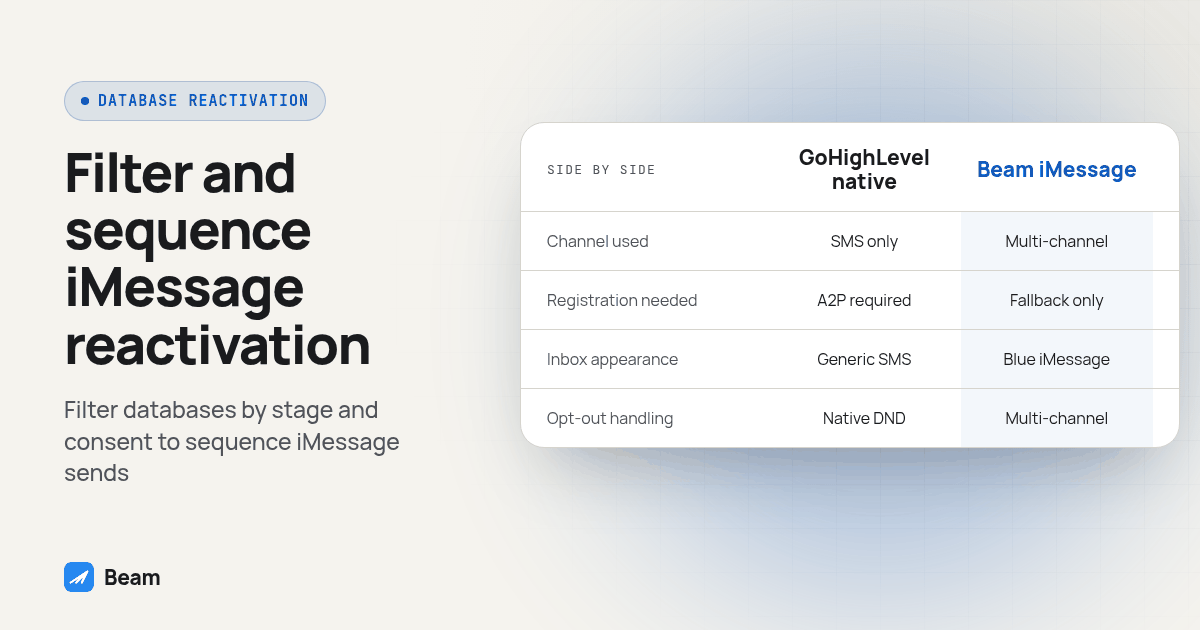
| GoHighLevel native Send SMS | Beam iMessage-first workflow | |
|---|---|---|
| Channel used | Your default SMS provider only | iMessage where eligible, RCS where the Android phone and carrier support it, SMS fallback otherwise |
| Registration needed | A2P 10DLC (local numbers), toll free verification, or carrier approval, depending on number type | None for the iMessage line itself; SMS fallback numbers still follow the same carrier rules |
| Inbox signal to the recipient | A generic text thread, often from a number the contact does not recognize | A blue bubble from a dedicated line where eligible, which reads differently than a generic business SMS |
| Reply and stop handling | Built on your own workflow logic and the native DND field | Opt-outs are enforced at the send layer across iMessage, RCS and SMS, in addition to the native DND check |
| Which list this suits | A list already comfortable receiving SMS marketing from your numbers | A stale database where a blue-bubble, person-reading send is meant to look different from a cold SMS blast |
GoHighLevel documents its own Send SMS workflow action as an automated SMS step (HighLevel Send SMS action). That is a separate route from a Beam send: use the Custom Webhook step described above when the message should go through Beam, and verify the sender and reply path during the test.
How Do You Keep Opt-Outs and Consent Clean on a List This Old?
Time does not erase a stop request, and silence does not create new permission either. Before any batch is tagged for release, pull the opt-out record from every channel the client has used, not just the texting platform, and exclude those contacts from the database reactivation entirely, including from the call handoff described below.
Treat a reply of stop, quit, end, revoke, opt out, cancel, or unsubscribe the same way no matter how old the contact is or which batch they came from. The FCC says replies such as STOP, QUIT, END, REVOKE, OPT OUT, CANCEL, or UNSUBSCRIBE are reasonable ways to revoke consent, and other clear requests must also be honored (FCC Order 24-24). Our guide to STOP and opt-out handling for business texting covers catching ordinary-language opt-outs, syncing them into the CRM, and the weekly reconciliation habit that matters even more on a bigger batch. This is an operational checklist, not legal advice; have the responsible reviewer confirm current requirements.
When Should a Warm Reply Hand Off to a Live Person or RizzDial’s Voice Follow-Up?
Not every reply needs a human on the phone. A contact who texts back “maybe next quarter” just needs a note in the CRM and a longer wait before the next touch, tagged reactivation-eligible for a future batch rather than closed out entirely. The reply worth escalating is the one carrying real urgency or a decision the contact is trying to make now: a timeline that already changed, a specific question about pricing or availability, or a direct ask to talk to someone.
That is the moment to tag reactivation-warm-reply, exit the text workflow, and route the contact to a call task instead of a fourth message explaining the same thing in writing. Some agencies route that handoff to a live rep’s calendar; others route it to an AI voice follow-up that can call the moment the tag lands. RizzDial covers that tradeoff, a missed-call text-back flow versus an AI voice agent picking up the reply, in its GoHighLevel missed call text back vs AI voice agent comparison. Whichever path an agency picks, confirm the next scheduled text is actually cancelled once the handoff tag fires.
What Does a Full Build-and-Test Walkthrough Look Like Step by Step?
Run this against one contact you control before any part of the database sees the workflow.
- Create one test contact you own in the connected GoHighLevel location, then manually apply the Pipeline Stage, Last Activity, consent source and opt-out state your filters expect.
- Confirm the test contact appears in the Smart List only after the filters are already saved. If it is missing, fix the filter stack before touching the workflow.
- Run the bulk action to add the
reactivation-eligibletag, watching the workflow enroll it automatically. - Step through the If/Else opt-out check by temporarily tagging the contact as opted out and confirming the workflow routes to
reactivation-excluded-dnc. Remove that tag before continuing. - Let the Wait step run, then confirm the Custom Webhook fires with
dry_runtrue first, checking for a validated response with nothing sent to the test phone. - Flip to a real send for the same contact, confirm the message lands as a blue bubble, RCS, or SMS, and confirm the tag write-back matches what arrived.
- Reply from the test phone with a plain acknowledgment, confirming the next scheduled message does not go out.
- Reply from a second test contact with clear interest, confirming
reactivation-warm-replyfires and the contact lands on a call task instead of the text sequence. - Release the smallest real batch only after every step passes, then watch delivery, opt-out and reply tags before releasing the next one.
A webhook accepting the request is not the same as delivery; treat a queued response as pending until the test phone receives it, and keep a masked record of each test run for the next person building a batch.
What Do Agencies Ask About GoHighLevel Database Reactivation by iMessage?
Who pays for the texting when we run a GoHighLevel database reactivation campaign, GoHighLevel or Beam?
GoHighLevel bills for the CRM subscription and its own automation. Beam handles the messaging line, sending capacity and iMessage, RCS and SMS routing separately. Text our team to try it with your database size and tag plan so the team can size a quote to the actual campaign.
How many iMessages can one line send in a day during a reactivation push before Apple flags it?
Apple does not publish a fixed daily send number for an iMessage line. Because there is no published threshold to plan against, pace a large reactivation batch across several days on a line sized for the volume instead of sending the whole list at once. Test your workflow with contacts you control before releasing a real batch.
Does reactivating an old list inside GoHighLevel require new A2P 10DLC registration?
Not for the iMessage line itself. iMessage lines do not need A2P 10DLC registration. If the recipient does not support blue bubble messaging and the fallback lands on a local 10DLC SMS number, that number still needs its own A2P 10DLC registration, a toll free number still needs toll free verification, and a short code still needs carrier approval.
How long does it take to build and launch a GoHighLevel reactivation workflow with Beam?
Building the Smart Lists and tags can start the same day. Readiness to send to a real contact depends on confirming the Custom Webhook step, testing on your own phone, and getting the opt-out and DND checks to pass before the first batch goes live. Start segmentation while the workflow is being built, and keep real database contacts out of it until the dry run passes.
What happens to the rest of the sequence the moment a dormant contact replies?
Configure the workflow so any reply stops the remaining scheduled messages in that contact’s sequence. A plain acknowledgment gets tagged and waits for the next planned touch. A reply with real interest gets tagged separately and routed to a call task or a live agent instead of staying in the text thread. Test this branch before releasing a real batch.
Pull the Smart List, write the five tags above into the account, and run the nine-step walkthrough on one contact before a single real record from the old database sees this workflow. Text our team to try it once the dry run passes and you are ready to size a line for the real batch.