TL;DR: A lead gets the same text twice because two separate Zaps both watched the same event (a form submission and the pipeline change it triggers, for example) and both called Beam’s generic send-message endpoint, which has no idempotency key to catch the repeat. A lead gets nothing because a Filter step quietly stopped one of those Zaps, the contact had opted out, or the message is simply queued for the next business-hours window. Trace both problems the same way: match Beam’s message timestamps against each Zap’s run history.
A client calling to ask why their lead got the same confirmation text twice, or why a hot lead never got one at all, is one of the more common support tickets agencies bring us once they have more than one automation wired into a Beam number. The pattern behind both complaints is almost always the same: somewhere upstream, more than one Zap is watching the same lead moment, and nobody wrote down which one is supposed to send what.
Why does a Zapier-to-Beam automation send one lead the same text twice?
Start with what Zapier actually protects you from. A polling trigger keeps a list of the unique IDs it has already seen, and it only fires on an ID that is new to that list. That is real deduplication, and it works well for the one Zap that owns it. The gap is scope: that list belongs to a single Zap’s trigger step, not to your account, and not to any other Zap pointed at the same data. Zapier’s own documentation describes the check as comparing an item’s ID against IDs the Zap has already received, with no mention of sharing that history across Zaps (How Zap triggers work; How Zapier handles duplicate data). Zapier users discuss cross-Zap memory and filtering in its community forum.
Now put a second Zap into the picture. An agency commonly wires one Zap to “New Form Submission” on a lead-capture form and a second Zap to “Updated Opportunity: stage equals New Lead” in the CRM pipeline, because both feel like reasonable places to kick off a welcome text. If the form submission immediately creates that opportunity and sets its stage, both Zaps fire within moments of the same real-world event, and each one has every reason to believe it is the only automation responding to a brand-new lead. Each Zap may pass its own trigger checks: one sees a new submission, the other a new stage change. Both can respond to the same lead event.
What happens next depends entirely on which Beam endpoint each Zap calls. If both Zaps use the Webhooks by Zapier POST action against https://beam.aisync.link/v1/messages, the setup our own guide to giving Zapier an iMessage number with SMS fallback walks through, Beam accepts each request as a new message on its own merits. The send-message reference lists to, message, first_name, attachments, and effect as its fields. There is no request_key, no idempotency header, and no documented way for Beam to know that two separate POST calls are really the same intended send. Beam’s send-message reference documents the fields accepted by that endpoint, while its new-lead webhook reference explicitly documents repeat-call suppression for the same phone number. Two accepted generic send requests can therefore create two message records and two texts. Keep the endpoint distinction clear when explaining the incident: only the first-touch webhook documents a same-phone repeat guard.
Why would a lead get no text at all even though the Zap ran?
A green Zap status does not prove a text reached the phone. Check whether the run reached Beam, what Beam returned, and whether the message is queued.
The first is a Filter step that did exactly what it was built to do. Zapier’s run-status guide explains that a Filtered step prevents later steps from running. Check the step details to see what happened in this particular Zap; a Filtered status is a clue to inspect, not proof that a lead was supposed to pass. If an agency built a Filter step to keep a second, redundant Zap from firing (the fix this very article recommends later on) and then forgets that filter exists, a legitimate new lead that happens to match the filtered condition can get skipped along with the duplicates.
The second is Beam’s own response to the request. A 403 means the contact opted out, and Beam will not message them. A no_channel status means no eligible channel was available for that contact. Use the message status reference for the exact state and the conversation history endpoint to review the recorded thread. Neither of these looks like a Zapier failure, because Zapier only sees that it received an HTTP response, not that the response describes a refusal. An agency that only checks whether the Zap step turned green, instead of reading the JSON body it got back, will miss both.
The third possibility is pacing. Beam may queue a first touch sent outside the allowed sending window for a later time. A queued request is not the same as a failed send, so check its message status before changing the Zap.
What ownership rule prevents the same message from returning?
Write down the trigger, message purpose, and owner before adding another automation. For example, make the form-submission Zap responsible for the first welcome text, and the appointment Zap responsible for reminders. If the CRM has a dependable field or tag showing that the welcome went out, use it in a Filter step before the other Zap’s Beam action. Record each message type, its trigger, and the result you expect to see in Beam.
Test both paths with a phone you control. If a Zap times out after sending a request, check the Beam conversation and message status before replaying it. A queued response means Beam accepted a request, not that the phone received the text. Keep the contact’s consent and opt-out state in the CRM process, and use Beam’s API introduction and message status reference to verify the final state.
Which Beam endpoint is your Zap actually calling?
This single question explains more duplicate-send tickets than anything else, because the two most common ways to wire Zapier to Beam behave differently on exactly the point that matters here.
POST /v1/messages (generic send) | POST /t/:workspace/optin (new-lead webhook) | |
|---|---|---|
| Built for | Any message, any time, to a contact you already have | A contact’s very first touch, once |
| Repeat-call behavior | Not documented; each accepted call is a new send | Documented: a repeat call for the same phone returns queued: false and sends nothing |
| Typical Zap trigger | Any event: reminders, confirmations, follow-ups | New or first-time lead events only |
| What stops a duplicate | Nothing inside Beam; you have to prevent the second call yourself | Beam itself, for that one phone number |
| Covered in | Give Zapier an iMessage number with SMS fallback | Beam’s own one-time opt-in flow, documented alongside the CRM webhook |
Use the opt-in endpoint only for a new lead’s first touch. It ignores repeats for the same phone number, so it is unsuitable for reminders or other messages that should recur. For those workflows, prevent duplicate sends in Zapier or another system that tracks message ownership.
How do you trace a duplicate send back to the Zap that fired it?
Treat this like any other incident: confirm what happened on the actual phone, then work backward through timestamps until two systems agree on the same moment.
- Get the client’s own account of what arrived. Ask for the exact wording of both texts and roughly when each one landed. A genuinely different second message (a reminder sent hours later, say) is not the same bug as two identical welcome texts seconds apart, and you want to rule that out before you touch anything.
- Pull the contact’s conversation history from Beam. Open the Inbox thread for that phone number, or call Beam’s conversation-history endpoint directly, to get the stored record of every outbound message, including each one’s channel, status, and whether it came from a human sender or the automated assistant.
- Note the created timestamp on each duplicate message, not the sent timestamp. A message’s created time is the moment Beam accepted the original request, which sits closer to the moment the Zap actually ran than the sent time does, since sent time can shift later for pacing or business-hours reasons covered above.
- Open Zap History for every Zap that has a Beam action step. Zapier’s history guide describes filtering runs by date, Zap, app, owner and status, then reviewing run details and the data received or sent. Compare those details with Beam’s message timestamps.
- Match runs to messages, not Zaps to guesses. Whichever Zap shows a completed run close to a given message’s created timestamp is the one that produced that specific text. If two different Zaps each show a run close to the two different message timestamps for the same phone number, you have confirmed the overlap instead of assumed it.
- Check what each matched Zap is actually watching. Open the trigger step on both. If one watches a form submission and the other watches a pipeline stage change, confirm whether the form submission is what creates or updates that stage in the first place. That confirms whether you are looking at one real event wearing two triggers or two genuinely separate events that happen to land close together.
- Confirm which endpoint each Zap calls. Check the Webhooks by Zapier URL field on each one against the table above. Two Zaps both pointed at the generic send endpoint for the same message type is the textbook version of this bug.
- Write down which Zap should own this message before you change anything. Decide this on paper first, separate from the fix itself, so the decision survives past the person who happened to debug it.
Copy this into your incident notes or your automation documentation before you close out a duplicate-send ticket:
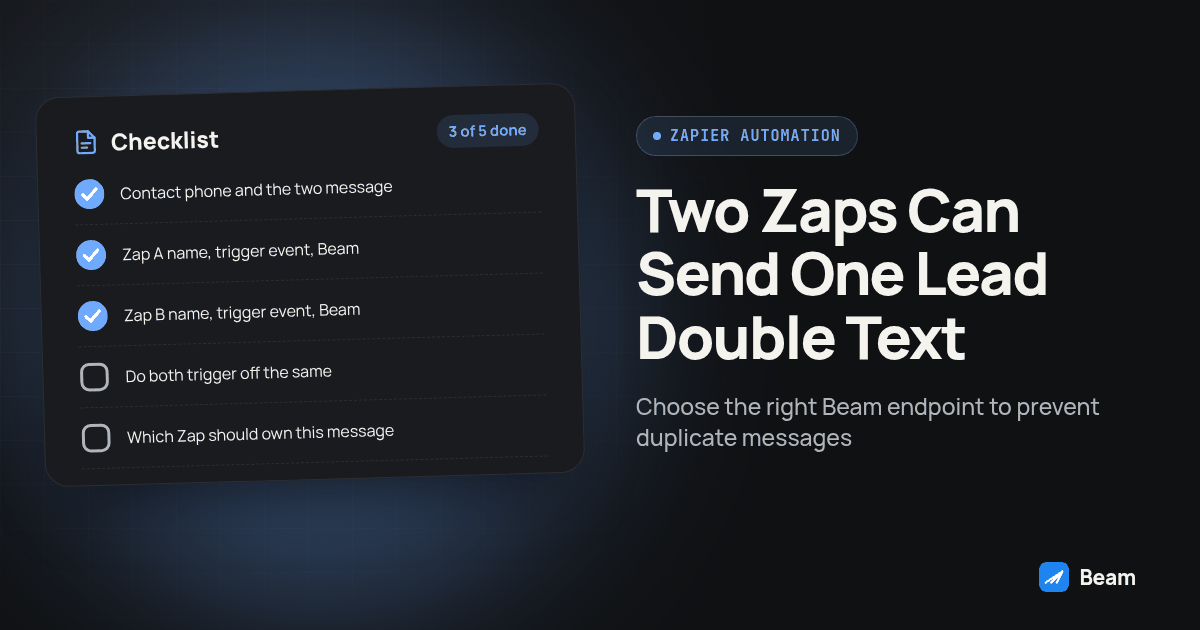
Zap ownership checklist
- Contact phone and the two message IDs involved:
- Zap A name, trigger event, Beam endpoint called:
- Zap B name, trigger event, Beam endpoint called:
- Do both trigger off the same underlying lead event?  yes / no
- Which Zap should own this message going forward:
- What stops the other Zap from also sending it (Filter step, disabled action, removed step):
- Re-tested with one controlled contact through both trigger paths:  yes / no
How do you stop two Zaps from fighting over the same lead?
Once you know which two Zaps are involved, fixing it rarely takes a developer. The decision is editorial: pick which Zap owns a given message type, then make the other one physically unable to send it.
Add a Filter step to the Zap you are turning off for that message, checking a field that reliably distinguishes “this already got welcomed by the other Zap” from “this genuinely needs a first touch,” and put that filter before the Beam action, not after it. If no such field exists yet, add one: a simple checkbox or tag your CRM sets the first time any welcome text goes out works better than trying to infer intent from timing after the fact. Alternatively, just disable the Beam action step on the Zap you are not keeping, so the trigger can still run for whatever else it does without ever reaching Beam.
Keep one Zap per message type as a standing rule, not a one-time fix. A Zap that sends a new-lead welcome and a Zap that sends an appointment reminder should stay separate even if they could technically share a trigger, because a future edit to one is far less likely to silently change the other’s behavior if they were never tangled together in the first place.
Before you turn either Zap back on for real contacts, run one controlled test through each trigger path with a phone you control, confirm only the intended Zap’s Beam action actually fires, and check the resulting message against the full iMessage API reference to confirm the request shape matches what you expect. That one test, repeated any time you add a third automation into the same lead flow, is cheaper than the next support ticket.
What do agencies ask about Zapier-to-Beam duplicate sends?
Why would two different Zaps send the same lead the same text?
Zapier says its trigger deduplication is scoped to the same Zap, so two separate Zaps using the same trigger can both run. Beam’s generic POST /v1/messages reference does not document a repeat-request key, so check each Beam message record and Zap run to confirm whether both workflows sent the text.
How do I find out which Zap actually sent the duplicate text?
Pull the contact’s conversation history from Beam to get the exact timestamp of each outbound message, then open Zap History for every Zap that has a Beam action and look for a run that completed close to that same timestamp. A match on timing, not a guess based on which Zap you touched most recently, is what proves which automation fired.
If a lead never got a text, does that mean the Zap is broken?
Not necessarily. Check Zap History first for a Filtered status, which means a condition step stopped the run before it ever reached Beam. Then check the Beam message record for a 403, meaning the contact already opted out, or a no_channel status. A message sent outside business hours can also sit queued for the next morning window instead of failing outright.
Do I need a developer to stop two Zaps from fighting over the same lead?
Usually not. Once you know which two Zaps are involved, the fix is deciding which one owns that message and adding a Filter step, or turning off its Beam action, on the other one, inside Zapier’s own editor. For a brand-new first touch to a lead who has never been texted before, Beam’s new-lead webhook documents repeat-call suppression for the same phone number.
If the automation you are debugging is still in the setup stage rather than already misbehaving, start with giving Zapier an iMessage number with SMS fallback before you add a second Zap into the same lead flow. Agencies running the same lead flow through GoHighLevel workflows instead of Zapier will recognize this exact failure mode from tracing an extra GoHighLevel send, which covers the CRM workflow endpoint’s own request-key protection. On the voice side of the same lead, RizzDial’s guide to triggering a call from Zapier is worth reading alongside this one if the same lead event is meant to both call and text. Text our team to try it once you have a Zap you trust, and we can walk through your specific trigger setup before you point it at a real contact list.