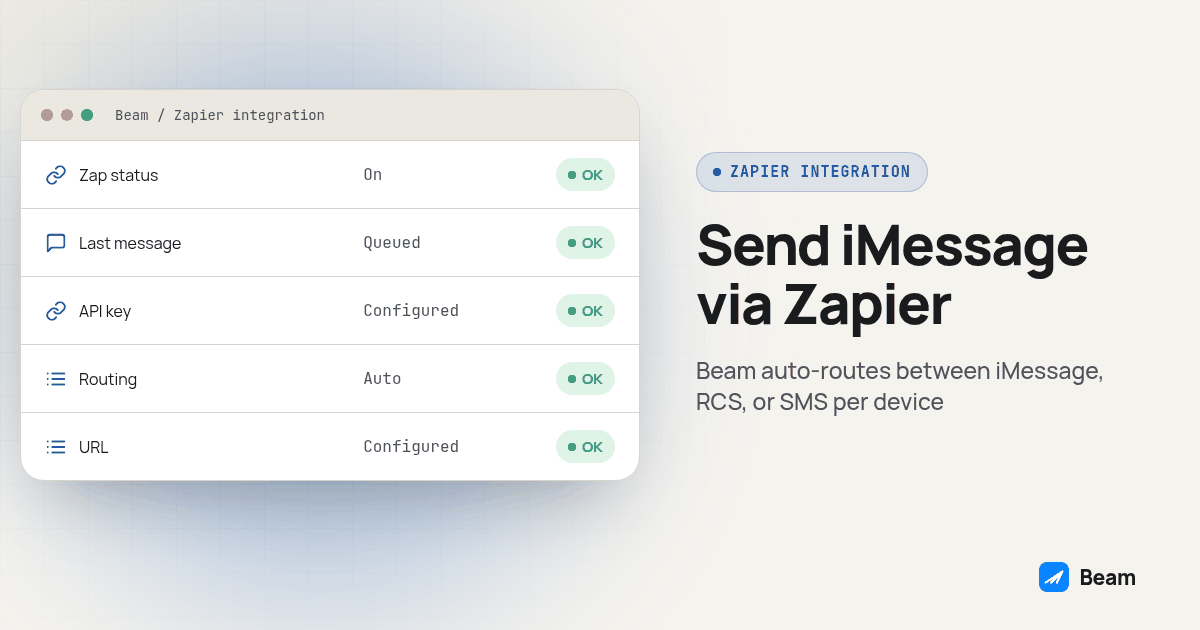
A form submission or a GoHighLevel pipeline change can start a Zap that requests a business text. This guide shows how to connect that trigger to Beam, check the resulting message record and verify a reply on a phone you control. The steps are based on the documented interfaces, not a claim that a live customer test was performed for this article.
What does “Zapier sends iMessage with SMS fallback” actually mean?
Nothing about Zapier itself knows what iMessage or RCS is. What makes this work is that Zapier’s job stops at firing an HTTP request, and Beam’s job starts the moment that request lands. Beam looks up whether the recipient’s phone supports blue bubbles, routes the message as iMessage if so, as RCS if the Android phone and carrier support it, and as SMS if neither applies. One phone number, one conversation thread, three possible channels, and the Zap never has to pick which one.
That split matters for how you build the Zap. You are not choosing an “iMessage app” or an “SMS app” inside Zapier’s app directory, for this setup. You are using Zapier’s own generic HTTP action, Webhooks by Zapier, to call Beam’s REST endpoint directly. It is one more configuration step than picking a native app from a dropdown, but it also means nothing about this setup depends on Zapier shipping a Beam-specific integration first.
Which Zap trigger should kick this off?
Almost anything that fires once per real event works as the trigger step. Two practical examples for agencies and GoHighLevel resellers:
- A new or updated opportunity in a sales pipeline, so a hot lead gets a text the moment it reaches a stage that calls for one, not whenever someone next opens the CRM.
- A new form submission, so the person who just filled out a contact form gets a reply while the request is still fresh in their mind, instead of a canned autoresponder email.
Either one plugs into the same second step. The trigger decides when the Zap runs; the action step we are about to build decides what happens to the phone number and message text once it does.
How do I set up the Webhooks by Zapier POST action?
This is the part that actually sends the text. Build it as the second step in your Zap, right after the trigger.
- Click to add an action step and search for Webhooks by Zapier.
- Choose POST as the event. This is a paid action on Zapier’s Professional, Team and Enterprise plans; it is not available on the free plan (Zapier: Send webhooks in Zap workflows).
- Set URL to
https://beam.aisync.link/v1/messages. Keep query parameters out of the URL field; Zapier’s own guidance says to put them in Data instead. - Set Payload Type to JSON.
- In Data, add two fields:
tomapped to the recipient’s phone number from your trigger step, andmessagemapped to the text you want sent, written out in plain language with any merge fields your trigger exposes (first name, appointment time, whatever the trigger step makes available). - Optionally add a third field,
first_name, if your trigger has it. Beam saves it to the contact the first time it messages them. - In Headers, add one header named
x-api-keywith your Beam workspace API key as the value. This is the authentication step; Beam rejects the request with a 401 if this header is missing or wrong. - Run the step’s test. Zapier shows you the live response. A correct call returns a message ID and
"status": "queued". - Open your Beam inbox (or watch the connected test phone) and confirm the message actually went out and arrived, not just that Zapier reported success.
- Turn the Zap on only after step 9 checks out on a real test contact, not a guess at what the payload should look like.
Here is the Data section as a copy-paste starting point. Treat it as a template, not a literal body you send unedited; the values in quotes after the colons are what you map from your trigger step inside Zapier’s editor, not text you type as-is.
{
  "to": "{{recipient_phone_from_trigger}}",
  "message": "{{your_message_text}}",
  "first_name": "{{recipient_first_name_from_trigger}}"
}
And the response you should see on a working test call, using the example shape in Beam’s send-message reference:
{
  "id": "41",
  "status": "queued",
  "to": "RECIPIENT_PHONE_NUMBER"
}
Where do I get the Beam API key the header needs?
Inside Beam, under Settings, as the workspace owner. Beam’s quickstart is explicit that this key is for technical integrations, meant to live server side, never pasted into a browser console, a public repository or anything a visitor could see. A Zap qualifies as server side: Zapier runs the request from its own infrastructure, not from a page a customer loads. Keep the key only in Zapier’s Headers field for this one step, and do not also drop it into the Data body or a text field elsewhere in the Zap where it might get logged somewhere you did not intend.
If more than one person on your team builds Zaps against this same workspace, it is worth deciding now who actually holds that key and how it gets rotated if someone leaves, the same way you would treat any other server credential.
How does Beam decide between iMessage, RCS and SMS?
You do not set a channel field anywhere in this Zap, and that is on purpose. Beam checks the recipient’s phone before it sends, and the same POST /v1/messages call behaves differently depending on what it finds: an eligible iPhone gets iMessage, a supported Android phone gets RCS, and anything else gets plain SMS. After a confirmed iMessage failure, SMS fallback requires the workspace fallback setting to be enabled. An uncertain delivery is not automatically re-sent. Check the setting before promising that behavior to a client, as explained in Beam routing. The whole decision happens inside Beam’s queue, after your Zap has already finished running.
What does not change based on channel is the compliance picture underneath it. Beam iMessage lines do not require A2P registration. That does not establish a blanket exemption for every channel or sending line. The SMS fallback on that same line is different: a local 10DLC number still needs A2P 10DLC registration, a toll free number still needs toll free verification, and a short code still needs carrier approval for the applicable sending route. Pick the number type for your line with that fallback path in mind, not just with the iMessage case in mind, since your contact list may include phones that need SMS.
REST webhook or Beam MCP: which one should this Zap use?
Beam also exposes the same workspace through an MCP server at https://beam.aisync.link/mcp, the connection used by the Codex and Grok Bot setups linked below. For a Zap, the REST webhook above is the right tool, not MCP. MCP is built for an AI agent that decides which tool to call based on a plain language instruction; a Zap already knows exactly which call it needs to make every time it runs, so there is no decision left for an agent to make.
| Webhooks by Zapier to /v1/messages | Beam MCP endpoint | |
|---|---|---|
| Built for | A fixed, repeating automation step | An AI agent choosing which tool to call |
| Auth | x-api-key header, workspace API key | Authorization: Bearer header, a separate connection token from Settings, Developer access |
| Where it runs | Inside the Zap, no extra server | A client like Claude Code, Codex or a cloud agent |
| What triggers it | Your Zap’s own trigger step | A person or agent asking for something in chat |
| Covered in | This guide | Give Codex its own iMessage number, Give Grok Bot its own iMessage number |
If what you actually want is an AI agent reading replies and drafting responses rather than a scheduled trigger firing a fixed message, those two companion guides cover that setup instead of this one.
How do I test the Zap before turning it on?
Do this with a phone you control, every time, before this touches a real contact list.
- Send one test through the Zap to your own number and confirm the message arrives on the device, not just that Zapier’s test panel shows a green checkmark.
- Send a second test to a number you know is Android, if you have one, and confirm it still arrives, just as RCS or SMS instead of iMessage.
- Check the returned
idagainstGET /v1/messages/:id, so you have seen the status field move from queued toward its final state at least once before trusting it inside an unattended Zap. - Confirm the merge fields in your message text actually populate. A field that resolves to blank in testing will resolve to blank in production too, just at a worse time.
A queued response proves Beam accepted the request. It does not prove delivery on its own, and treating the two as the same thing is a mistake that can hide failures when you expand beyond a pilot.
What should I check before scaling this past one Zap?
A few things are worth deciding deliberately rather than discovering under load:
- Duplicate protection lives in Zapier, not in Beam’s response. The send-message reference does not document an idempotency key, so a Zap that retries on a timeout, or two Zaps both wired to the same trigger, can send the same text twice. Build your trigger step to fire once per real event, and resist the urge to point a second Zap at the same source “just to be safe.”
- Opt-out handling still applies. If a contact has opted out, Beam returns a 403 and sends nothing. Build a path in your Zap, such as a CRM review tag, for what happens when that call fails, rather than letting it fail silently.
- One Zap per message type, not one giant Zap for everything. A Zap that texts a new lead and a Zap that texts an existing client a reminder have different message content and different trigger conditions. Keeping them separate makes a mistake in one obvious without touching the other.
- The key you pasted into Headers still belongs to a real workspace with a real monthly plan and assigned number. Nothing about Zapier changes that; a Zap does not create sending capacity, it just automates sends against capacity you already have.
What do people ask about texting from Zapier through Beam?
Do I need a paid Zapier plan to send texts this way?
Yes. Zapier’s help documentation lists Webhooks by Zapier actions on Professional, Team and Enterprise plans, not on the free plan. This setup uses the POST action to send the message request.
Where do I get the key that goes in the x-api-key header?
From inside Beam, not from Zapier. Sign in as the workspace owner, open Settings, and copy the workspace API key. It is meant for server side and automation use, which is exactly what a Zap is, and Beam’s own quickstart says to keep it out of anything client facing.
Does texting through Zapier this way need A2P 10DLC registration?
Not for iMessage. iMessage runs outside carrier A2P rules. The SMS fallback on the same line still follows the registration that its number type requires: a local 10DLC number needs A2P 10DLC registration, a toll free number needs toll free verification, and a short code needs carrier approval.
What happens if my Zap fires twice for the same lead?
Two accepted requests can produce duplicate texts. The send-message reference does not document an idempotency key, so do not assume repeated requests are automatically deduplicated. Use Zapier’s own trigger de-duplication, and avoid wiring the same event into two Zaps that both call Beam.
Start with one trigger, one test phone and one Zap. Confirm the message lands as a blue bubble on an iPhone and as RCS or SMS on an Android phone before you connect it to a real pipeline stage, and keep the duplicate-send question in mind the moment you consider a second Zap touching the same contacts.
If the same workflow also needs the agent itself reading replies rather than just firing a fixed message, see giving Codex its own iMessage number and giving Grok Bot its own iMessage number. For the voice side of the same automation, RizzDial’s guide to giving your AI agent a phone covers calls, voice agents and transcripts, for planning the voice side alongside Beam’s messaging and supported call connections. And before you plan volume beyond a single pilot Zap, read outbound texting and mass texting with Beam to confirm budget, sending capacity and reply ownership together, and the full iMessage API reference for every field this endpoint accepts.