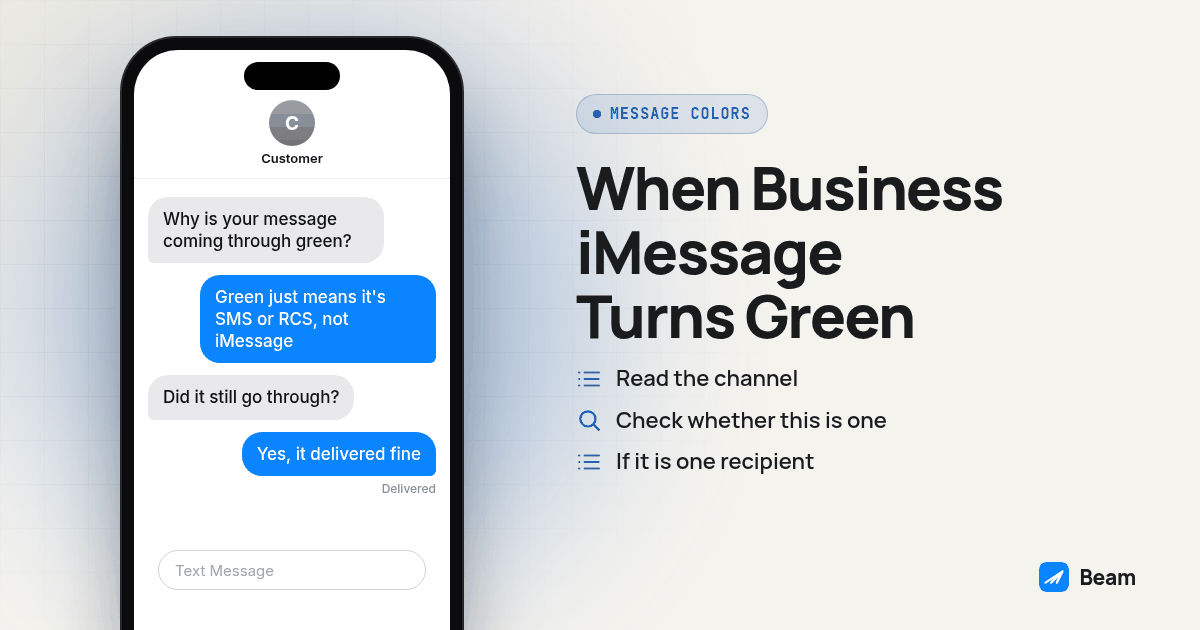
TL;DR: A green bubble on a business iMessage line almost always means the text went out as RCS or SMS instead of iMessage, not that anything broke. The real question is why that particular send fell back: the recipient is not reachable on iMessage right now, an Apple ID or network state changed, or a prior attempt was marked failed and your workspace’s fallback setting pushed it to text. Check the message status before you touch the line.
An agency team may see a thread that has been blue for months turn green on one send, then assume the line is broken. It usually is not. Green is Apple’s label for “this message is not iMessage,” and on a business line that can mean RCS to a supported Android phone, SMS to anyone else, or a deliberate fallback after a failed attempt. Below, we walk through what causes each case, how to tell a one-off from a real line problem, and what to tell a client staring at a green bubble and asking if their text went through.
What Does a Green Bubble on a Business Line Actually Mean?
Green is a channel label, not a status report. Apple’s own guidance on message colors confirms that green identifies RCS, SMS, or MMS rather than iMessage, and that color alone does not say whether the message arrived (Apple: reasons you might see a green message). On a dedicated business number, the practical translation is simpler: the recipient is not an eligible iMessage endpoint at that moment, or something about the send path pushed the message to text instead.
That matters because “not iMessage” is not the same sentence as “not delivered.” A green SMS can be sent, delivered, and answered within a minute. A blue iMessage can sit with no status at all for reasons that have nothing to do with color. Mixing the two ideas is the most common mistake agencies make when a client flags a green text, and it is why the first move should always be the status field, not the bubble.
Blue, Green, and Red: What Each Signal Actually Confirms?
| What you see | What it confirms | What it does not confirm | What to check next |
|---|---|---|---|
| Blue bubble | The message is using the iMessage channel | Delivery, reading, or reply | The status field (queued, sent, delivered) |
| Green bubble, Android recipient | The message used RCS or SMS to reach an Android phone | Which of the two carried it, or whether it arrived | The recorded channel on the message object |
| Green bubble, iPhone recipient | The recipient is not currently reachable on iMessage, or a prior attempt failed over | Whether that is permanent or temporary | Recent device or Apple ID changes, and the fallback setting |
| Red exclamation, Not Delivered | An attempt failed outright | Whether a retry will succeed | Apple’s own retry and send-as-text options |
Apple documents iMessage, RCS, and SMS/MMS as separate protocols with separate capability rules, which is why a single color can map to more than one channel (Apple: the difference between iMessage, RCS, and SMS/MMS). A business line checks capability before picking a channel, and that check result, not the color your team sees later, is the actual explanation.
What Are the Three Real Reasons a Text Lands Green Instead of Blue?
A green send on an agency line can have one of three explanations, each calling for a different response.
The recipient is not reachable on iMessage right now. This is one possible cause. The lead might be on Android, in which case the message routes to RCS when the phone and carrier both support it, or to SMS when they do not. Or the lead might own an iPhone but have iMessage turned off, be signed out of their Apple Account, or sit in a dead zone with no data connection. None of these are faults on your side. Apple’s troubleshooting guidance covers exactly this category, including a recipient who recently switched phones and never deregistered their old number from iMessage (Apple: if you switch from iPhone).
An Apple ID or network state changed, on either end. Another possibility to check before you assume the recipient is the whole story: the sending device has its own Send and Receive configuration, and if its iMessage sign-in lapses or its network drops mid-send, the message can go out as text even though the recipient would otherwise have taken iMessage fine. Apple’s guidance on adding or removing a number from Send and Receive is the right starting point for checking the sending side (Apple: add or remove a phone number), and its sign-in troubleshooting page covers the network checks that rule this cause in or out (Apple: if you can’t sign in).
A prior attempt was marked failed, and fallback kicked in. On Beam, SMS fallback after a confirmed failed iMessage send is a workspace setting your team controls, not something that happens silently by default. An uncertain delivery is not automatically retried or switched to text; a failure has to be confirmed first. If a thread shows green right after a run of blue messages, check whether the attempt before it actually failed, rather than assuming the whole line degraded.
Does Green Mean the Text Failed, or Just Changed Channels?
Neither answer is automatic, which is why this question causes so much back-and-forth on a client call. A green message can carry any of the same statuses a blue one can: queued while it waits in the pacing system, sent once it is handed to the network, delivered once the carrier confirms it reached the device, or failed if it genuinely did not go through. Color tells you the channel. Status tells you the outcome. An agency that reports “the text went green so it probably didn’t send” is answering a delivery question with a channel fact, and that habit erodes a client’s trust in your reporting faster than the green bubble itself ever would.
The same logic that applies to a dialer’s caller ID reputation applies here: one unusual signal on one call, or one green text on one thread, tells you almost nothing about the underlying number. A pattern across many sends is the thing worth acting on. RizzDial’s breakdown of how caller ID reputation gets built or damaged over time makes the same point for voice, and it is worth reading if your team treats a single flagged call, or a single green text, as proof of a broken number (RizzDial: caller ID reputation for sales teams).
How Do You Tell a One-Off Green Text From a Real Line Problem?
Run this sequence before you change a setting, swap a number, or tell a client anything definitive. It takes a few minutes and separates the three causes above instead of guessing at one.
- Read the channel and status fields separately. Do not rely on a bubble color in a screenshot a client sent you. Pull the actual message record and note whether it says
imessage,rcs, orsms, and whether the status isqueued,sent,delivered,failed, orno_channel. - Check whether this is one recipient or several. Pull the last day of sends on that line and count how many went green. One green message out of dozens of blue ones points at the recipient. Several across different leads, especially ones who were blue recently, points at the line.
- If it is one recipient, check what you know about their device. Is this lead on Android, or an iPhone? If you do not know, that uncertainty alone explains a lot: a first-touch text to an unknown device will show whichever channel that phone supports, which is expected behavior, not a bug.
- If it is several recipients, check the sending device’s own iMessage sign-in. Confirm the business line is still signed in under the Apple Account and number you expect in Send and Receive, with a working connection. A lapsed sign-in on the sending side pushes every affected send to text, not just one.
- Send a control message to a known-good test iPhone your team controls. If the control comes back blue and delivered, the sending line is fine and the problem sits with the recipient you started with. If the control also comes back green or fails, you have a line-side issue worth escalating.
- Decide what to tell the client based on the result, not the bubble. If the control passes, say plainly that the lead’s phone or settings, not your messaging setup, produced the green text. If the control fails, say that too, and fix the line before sending anything else through it.
What Should You Tell a Client When Their Thread Goes Green?
Most client anxiety about a green bubble is really a question about whether their customer got the message, dressed up as a question about color. Answer the real question. Here is a short template to adapt and send, once you have checked the status field:
“That text went out as a regular message instead of a blue iMessage because [the recipient’s phone does not currently support iMessage / their phone was briefly unreachable / the first attempt did not go through and our system sent it as a text instead]. The message status shows [delivered / sent / failed], which means [it reached their phone / it was handed off and we’re confirming receipt / it did not go through and we’re resending]. This is a routing difference, not a sign that your number or account has a problem.”
Keep a short internal log for every green-bubble question: the recipient’s number, the channel and status found, and which cause applied. After a few weeks that log tells you whether green sends on a line are random noise or a repeating pattern worth fixing.
How Does This Differ From a Blue Message That Never Shows Delivered?
A green bubble and a blue bubble with no Delivered status get confused constantly because both feel like “did this actually work.” A blue message with no Delivered line is still on the iMessage channel; the open question is whether Apple’s network confirmed receipt, not which channel carried it. We cover that diagnostic path, including why resending is almost never the right first move, in our guide to a blue iMessage that never shows Delivered. A green send answers “which channel”; a stalled blue send answers “did the channel confirm receipt.” Treating one like the other leads to the wrong fix almost every time.
Can You Check Ahead of Time Whether a Lead Will Show Blue or Green?
Not with a permanent guarantee, but you can check a current signal before committing a workflow to a list. Apple has never published a public lookup for this, so every method, including Beam’s own automatic check before the first send, reads a point-in-time result rather than a promise. Our breakdown of how to check if a number has iMessage before you text it covers the public approaches agencies run into and what Beam does differently: the capability check and the send happen as one action, so there is nothing extra to schedule or forget to re-run.
Where Does Channel Routing Fit Into a Business Line’s Overall Setup?
Green and blue are outcomes of a routing decision that happens on every send, not a one-time property of a phone number. A dedicated business line resolves the channel for each message against the recipient’s current capability and the line’s own support, a different question from how many numbers that line needs or what type they are. See the iMessage API’s channel routing for how that per-message decision works, and business phone number types for how the number itself, direct line, toll free, or short code, affects which channels it can attempt. An agency that understands routing at the line level stops treating individual green bubbles as emergencies.
What Do Agencies Ask About Green Bubbles on a Business Line?
Does a green bubble always mean the text failed to send?
No. Green identifies the channel, SMS or RCS, not a failed send. A green message can still show queued, sent, delivered, or failed in your CRM, and only the status field tells you which one actually happened. Treat the color as routing information and the status as the delivery answer.
Can a lead’s thread flip from blue to green without anything changing on our side?
Yes. The recipient can switch phones, turn iMessage off, sign out of their Apple ID, or lose a data connection, and none of that involves your business line at all. The channel is resolved fresh at send time against the recipient’s current state, so a thread that was blue for months can go green the day something changes on their end.
Should we tell a client their business line is broken when one text shows green?
Not from one message alone. Check whether the fallback hit one recipient or several before you say anything about the line itself. One green text to one lead can reflect that person’s phone or settings, and it does not prove the business line is broken. Several green texts to different leads, especially ones who were blue recently, is a pattern worth investigating.
Does a single green message hurt the sending number’s reputation?
Not by itself. A single change in bubble color does not establish that the sending line has a reputation problem. Review the message status and look for repeated delivery failures across different recipients before escalating.
What is the real difference between a green RCS message and a green SMS fallback?
Both render green on an iPhone, but they are different channels with different capability requirements. RCS needs the Android recipient’s phone and carrier to both support it, and it can carry richer features than plain SMS. SMS fallback is broadly supported across phones without an iMessage or RCS requirement, which is why it can serve as a backstop when the other two do not apply.
What Should You Do the Next Time a Thread Goes Green?
Pull the message record first, and read the channel and status as two separate facts. Check whether the fallback hit one lead or several, run a control send if the pattern looks wider than one person, and only then decide what to tell the client. Most green bubbles are the system doing exactly what it should for a recipient not reachable on iMessage at that moment. The ones worth escalating repeat across recipients who were blue last week, a pattern visible in a few minutes of checking, not a guess from a screenshot. If you are weighing how a dedicated line should route iMessage, RCS, and SMS fallback for your own client list, text our team to try it and compare the routing against what you run today.