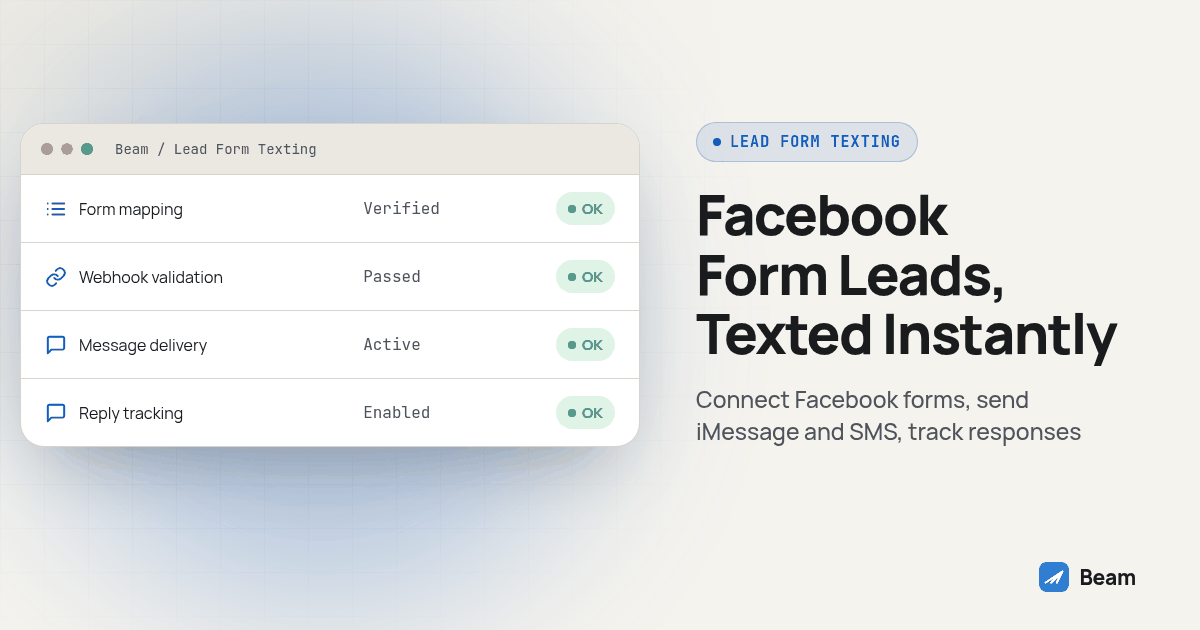
How does a Facebook or Meta lead form actually get into GoHighLevel?
Nothing texts anyone yet at this stage. Someone taps an ad, fills in the Instant Form without leaving Facebook or Instagram, and that submission has to cross from Meta’s servers into your CRM before anything downstream can fire.
In GoHighLevel, that bridge is the native Facebook integration under Settings, Integrations. You connect as the admin of both the Facebook Page and its Business Manager, choose the Page, decide whether to pull historical leads or new submissions only, and map each form field, name, email, phone, and any custom questions, to the matching GoHighLevel contact field (HighLevel’s own setup guide). A workflow can only react to a contact with a phone number attached, so confirm that field mapping with a real test submission first.
How do I trigger a GoHighLevel workflow the moment that lead form is submitted?
Once the Facebook integration is live, GoHighLevel exposes a workflow trigger built for exactly this: Facebook Lead Form Submitted. Add a new workflow, choose that trigger, and filter it down to the specific Page and specific form, not just the Page in general (HighLevel’s trigger reference). That filter matters more than it looks: an agency running several lead-gen campaigns for one client wants a different opening line for a roofing estimate form than for a free consultation form, and the only way to get that is to point each campaign’s form at its own workflow.
Check this stage before debugging the texting action. A missing Facebook permission, an expired token or a trigger filtered to a retired form can prevent enrollment. Compare the form submission with the CRM contact and workflow history to locate the gap. Submit a real test form through Facebook’s own Lead Ads Testing Tool before trusting the next steps.
How do I connect that workflow to a real text through Beam?
With the trigger and filter in place, the workflow needs one more action: a Custom Webhook step that calls Beam in place of any existing action that sends the same opening text. Beam adds iMessage, RCS where supported, and SMS fallback to a connected GoHighLevel workspace this way (GoHighLevel iMessage for your client workspaces).
- Connect the right GHL location in Beam first. Open Beam Settings, CRM inbox messaging, and link the same sub-account that holds this workflow, before touching the workflow step itself.
- Create a workspace token in Beam with Send real messages permission. Add Control automation too, only if this workflow should be able to pause Beam’s assistant on that contact. Store the token where your team can rotate it; it does not belong in a screenshot or a workflow note.
- In GoHighLevel, open the draft workflow and add a Custom Webhook action. Name the step something a teammate will recognize later, such as “Send with Beam,” set the method to POST, and point the URL at
https://beam.aisync.link/api/crm/workflows/send, as documented in Beam’s GHL workflow guide. - Set the Authorization header to a Bearer token using the workspace token from step two, and set Content-Type to application/json.
- Build the JSON body with GoHighLevel’s contact-value picker, not typed-in values, for the contact ID and first name. Beam pulls the recipient’s phone number directly from that GHL contact; no destination number gets pasted into the body by hand.
- Leave
dry_runset to true and run the workflow against your own test contact. A dry run should come back validated with nothing actually sent. - Flip
dry_runto false, run the same test contact again, and confirm a real message lands on a phone you control, from the correct business line, then check that the event shows up correctly on that contact’s GoHighLevel timeline before touching a client’s live leads.
Use this documented request shape, replacing the location and sender placeholders. The sender needs its country code. Set consent to true only after checking the recorded permission; the field does not create consent. Replace the service custom value with a value you have actually configured:
{
  "location_id": "YOUR_GHL_LOCATION_ID",
  "contact_id": "{{contact.id}}",
  "workflow_id": "facebook-lead-v1",
  "from": "YOUR_BEAM_BUSINESS_LINE",
  "message": "Hey {{contact.first_name}}, saw your question about {{custom_values.service}} come through. What made you start looking?",
  "request_key": "{{contact.id}}.facebook-lead-v1.step-1",
  "consent": true,
  "assistant_mode": "preserve",
  "dry_run": true
}
The request_key field names one intended message, not just one contact, so a duplicate trigger fire reuses the same key and comes back reporting a repeat instead of texting the lead twice. A later step needs its own suffix, such as step-2, rather than a freshly generated key on every attempt.
For your internal handoff, capture the workflow settings, validation response and received test message with the Authorization value hidden. This article describes a procedure to run, not a completed live customer test.
Once that request is accepted, Beam checks what the recipient’s phone actually supports before anything leaves the line:
| Recipient’s phone | What Beam sends | What the workflow needs to do differently |
|---|---|---|
| iPhone, capable line | iMessage | Nothing. Same Custom Webhook step. |
| Android, RCS supported by phone and carrier | RCS | Nothing. Same Custom Webhook step. |
| SMS-capable recipient, no iMessage or RCS route | Text (SMS fallback) | Nothing in this step; the sending line’s number type still needs its own carrier registration for SMS traffic. |
The workflow does not need device-specific branches. Sender capability and recipient reachability still matter; an ordinary landline is not automatically text-capable. SMS fallback after confirmed iMessage failure must be enabled in the workspace. An uncertain delivery state is not automatically re-sent (Beam routing documentation).
What should the first text actually say?
A generic “thanks for your interest, someone will reach out soon” reads like an autoresponder, because it is one, and a lead who just tapped a Facebook ad knows the difference. A useful opening message references what the person actually did and ends with one easy question, not a link.
Hey {first_name}, this is {rep_name} with {business_name}. Saw your
question about {service} come through. {one specific, easy question
tied to that form}?
A roofing lead form might fill that in as “Hey Maria, this is Jordan with Summit Roofing. Saw your question about the hail damage estimate come through. Is the damage on the roof itself or mostly the gutters?” This illustrative message identifies the business and asks one concrete question. Preview the completed merge fields before sending.
What happens if the Facebook lead never replies to the first text?
Plan the silence before the message, because most of this workflow’s value shows up in what happens when nobody answers right away, not in the first text itself. A workable fallback sequence, built as GoHighLevel delays and conditions around the same contact:
- Minute zero. The Custom Webhook step sends the first text through Beam, as built above.
- No reply after a short wait. A second, different text, not a repeat of the first. Reference the specific offer again and shrink the ask, “Still want that quote, or should I close this out?”
- Still no reply after a longer wait. Route the contact to a call instead of a third text. This is where the handoff below comes in.
- A reply at any point stops the sequence. Build this as its own condition, checked before each delayed step fires, not as an afterthought.
Keep every step tied to the same request_key pattern from the setup above, a new suffix per step, so a workflow re-run from a glitch does not send a step the contact already received a second time.
How do I hand a silent lead to a RizzDial call instead of letting it go cold?
Texting first and calling second is one sequence to test when the form and recorded permissions support both channels. A call can offer a different way to answer a detailed question. Do not treat silence as fresh permission to call, and do not send an opted-out contact into a voice branch.
That is where a GoHighLevel branch hands the same contact to a RizzDial AI voice agent instead of a third unanswered text. RizzDial connects to GoHighLevel directly, so the workflow that triggered the Beam text can add a call step further down the same sequence once the no-reply condition is met. Read RizzDial for GoHighLevel agencies for how that handoff is built, since the call step sits outside what Beam’s texting workflow controls.
How should I measure opens, replies and speed to lead?
Do not promise a client an open rate or a delivery deadline before testing their actual workflow. A queued response means Beam accepted the request, not that the phone received or displayed it. Read receipts depend on the channel and available events. A missing read event does not prove the person ignored the message (Beam message status reference).
Keep a simple test log with the form submission time, contact creation time, workflow enrollment time, Beam acceptance time and observed arrival on your test phone. Those checkpoints separate a Meta sync delay from a workflow delay or a sending delay. If your first measurement is only the final reply, you cannot tell which stage needs attention.
For a client pilot, record delivered messages, replies, qualified conversations and appointments separately. Define the observation window before comparing campaigns. A short reply is not automatically a qualified lead, and a calendar link click is not automatically an appointment. Report the actual sample and outcomes rather than borrowing another vendor’s percentages.
The practical aim is to remove the manual wait between a valid form submission and an approved first contact. It is not a guarantee that every recipient will receive or read the text immediately. Sending hours, line pacing, permissions and recipient capability still apply. For teams that already use Zapier, give Zapier an iMessage number with SMS fallback covers that separate integration route.
What should I test before turning this workflow on for a real client?
Treat the dry run from the setup steps above as the minimum, not the finish line.
- Submit a real test form through Facebook’s own testing tool and confirm the contact lands with the phone field filled in correctly.
- Run the workflow with
dry_run: trueagainst your own contact and confirm the response shows validated with nothing sent. - Flip to a live send on that same contact and confirm the message arrives from the correct business line.
- Reply from that test phone and confirm it threads correctly on the same GoHighLevel contact, not as a separate conversation.
- Re-run the exact same step on purpose and confirm it reports a repeat instead of sending the text again.
- Walk the no-reply branch forward manually, including the RizzDial handoff step if built, before a client’s ad budget points at it.
Keep the customer workflow in draft until these checks pass in your controlled test. Also test a contact marked DND, a missing phone field and an opt-out reply. Verify that each stops further sends. Assign a teammate to review failed steps before enabling real enrollment.
What about consent and opt-outs on Facebook lead form contacts?
A form submission alone does not establish permission for every text or automated call. Review what the form actually says, which business is named, the channel authorized and the purpose of the follow-up. Keep the form version, disclosure and submission record with the contact. Have the responsible reviewer check the intended campaign before enabling automated outreach.
Treat an opt-out as a stop condition across the sequence, including a planned call handoff. The FCC recognizes STOP and similar replies as reasonable ways to revoke consent (FCC consent revocation order). Do not keep retrying a suppressed contact or swap channels to get around that request.
Registration follows the channel and number type: no A2P registration for iMessage lines; local 10DLC SMS needs A2P 10DLC registration, toll free SMS needs toll free verification, and short codes need carrier approval. These requirements do not replace consent. See set up an AI text message responder without losing control for defining a human-reviewed boundary around automated replies. This is a workflow checklist, not legal advice.
What do agencies ask before they turn this workflow on?
Does this replace the Facebook Lead Ads connection I already set up in GoHighLevel?
No. The Facebook or Meta integration under Settings, Integrations is still what pulls the lead into GoHighLevel in the first place. This workflow starts after that: a Custom Webhook action that fires once the lead lands as a contact, so GoHighLevel keeps doing the sync and Beam just handles the text.
Do I need a developer to set up the Custom Webhook step, or can an agency admin handle it?
An agency admin comfortable with GoHighLevel Workflows can follow the documented Custom Webhook setup. Check the Authorization header and select contact values with the field picker. Ask a developer to help if your custom branching, error handling or reply synchronization requires logic your team cannot verify.
What happens to the Facebook lead if they are on an Android phone?
Beam chooses RCS when the Android recipient’s phone and carrier support it and the sending line is capable. Otherwise SMS may be available where the line can reach the recipient. Confirmed-failure SMS fallback is a workspace setting; uncertain delivery is not automatically re-sent. Test the actual line and phone before enabling the workflow.
Is it allowed to text someone the moment they fill out a Facebook lead form, instead of waiting for them to text us first?
Check the form’s disclosure and the contact’s recorded permission before sending. Submitting a form does not automatically authorize every marketing text or automated call. The intended follow-up must fit that permission, registration requirements still apply by channel and number type, and an opt-out stops the sequence.
How long does it take to get this workflow live for a new client?
Allow time to connect the Facebook Page, map the fields, configure the trigger and webhook, and test delivery, replies and suppression. Page access, line readiness and test results determine when it is ready. Do not promise a fixed setup time before checking those dependencies.
Want to see this exact workflow run against one of your own forms before building it for a client? Text our team and we will walk the Custom Webhook setup with you live.